
Test on your own iPhone (Local debugging)
Put your MeDo app on your own iPhone for free: package it in MeDo, then install the file with Sideloadly or AltStore using a normal Apple ID. Step by step, with screenshots.
This is the quickest way to see your app running as a real iPhone app. It needs no paid Apple account — just the Apple ID you already use on your phone, a computer (Windows or Mac), and a USB cable.
What to expect
- MeDo gives you an IPA file — the iPhone equivalent of an installer. Because it is made without a paid Apple account it is unsigned, so you cannot install it directly; a free desktop tool stamps it with your Apple ID and copies it to your phone.
- The installed app stops opening after 7 days. That is an Apple rule for free accounts, not a bug. Re-run the install step to get another 7 days.
- You can have at most 3 apps installed this way at once, on up to 3 phones.
- It is for looking and testing. To give the app to other people, use TestFlight or Ad Hoc.
Each packaging run costs 500 credits, refunded automatically if it fails.
Part 1 — Package the app in MeDo
- Open your Mobile project and click Export installation package at the top of the editor.
- Choose the iOS App tab and click Packaging V… version.
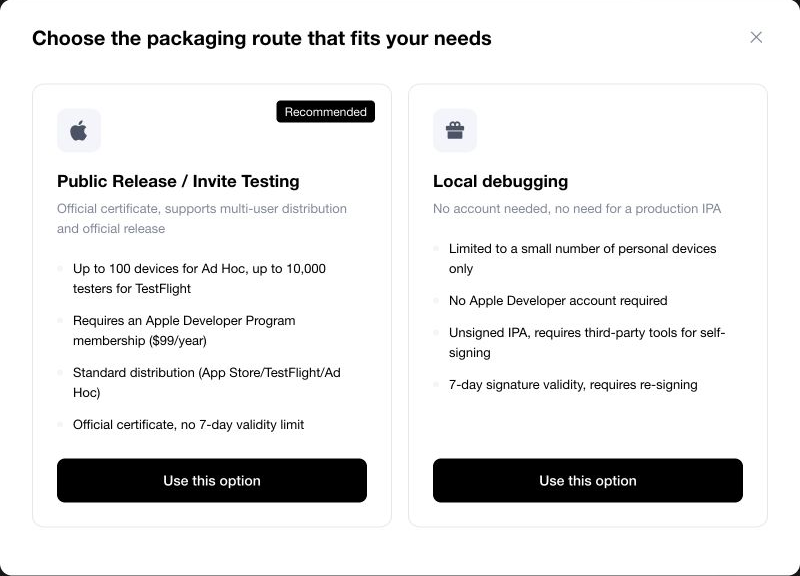
- Choose Local debugging → Use this option.
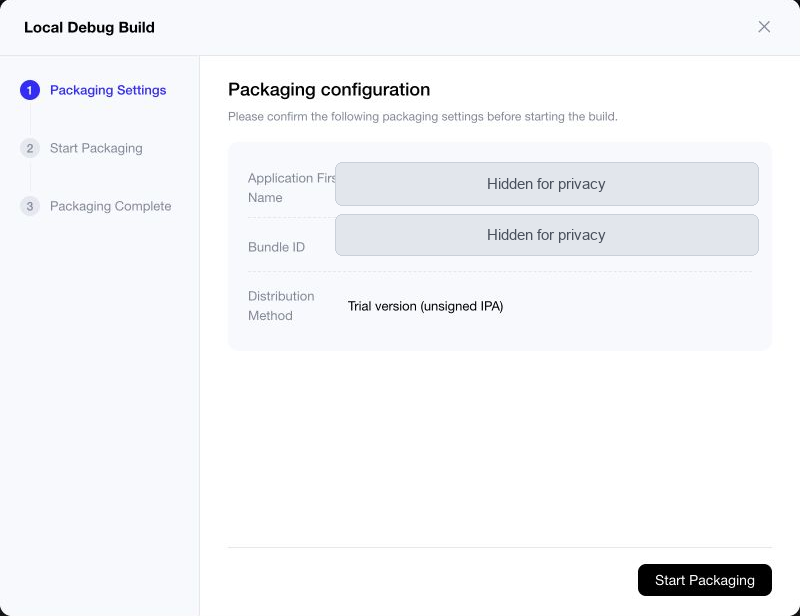
- Check the settings MeDo shows — the app name and Bundle ID are filled in for you; the distribution method reads Trial version (unsigned IPA). Click Start Packaging.
MeDo then builds the app. This is the screen you will see while it works:
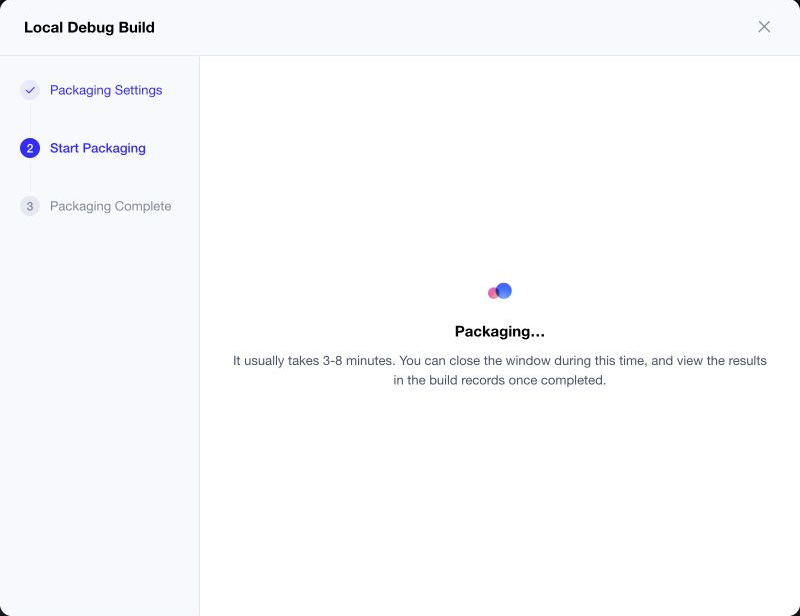
- Wait 3–8 minutes. You can close the dialog and come back; the build appears in the list inside Export installation package.
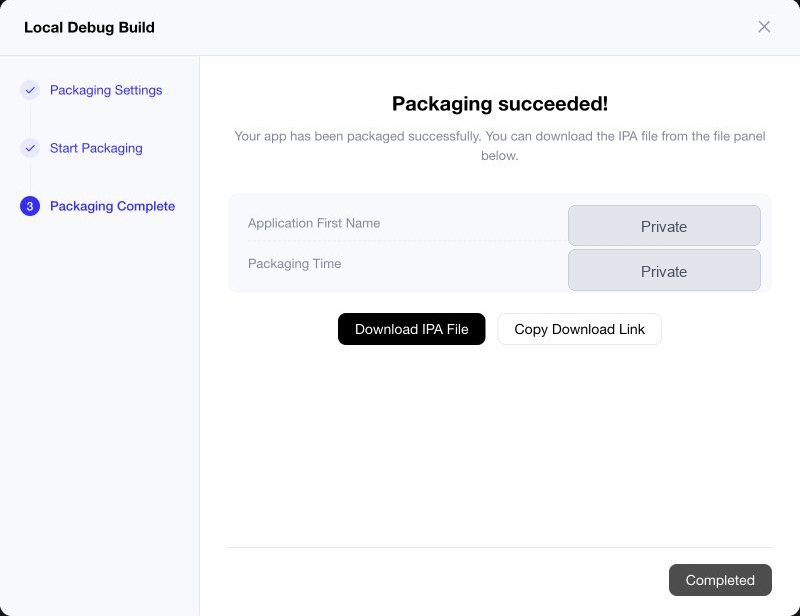
- When it says Packaging succeeded!, click Download IPA File and save the file somewhere easy to find, like your Desktop.
Part 2 — Install it on your iPhone
Pick one tool. Sideloadly is the simpler of the two.
Option A: Sideloadly (recommended)
- On your computer, download Sideloadly from sideloadly.io and install it. Windows only: install iTunes and iCloud from Apple's website (not from the Microsoft Store) first — Sideloadly needs them to talk to the phone.
- Plug your iPhone into the computer with a USB cable and unlock it. If the phone asks Trust This Computer?, tap Trust.
- Open Sideloadly. Your iPhone should appear in the iDevice box.
- Drag the IPA file you downloaded from MeDo onto the IPA box.
- In the Apple ID box, type the email of your Apple ID and click Start. Enter your password and the two-factor code when asked. Sideloadly signs the app and installs it.
Sideloadly uses your Apple ID to create the free signing stamp. If you prefer, create a separate free Apple ID just for this so your main account is never involved.
Option B: AltStore Classic
- Follow the official installation guide for Windows or Mac to install AltServer on your computer, then use it to put the AltStore app on your phone (it will ask for your Apple ID).
- Get the IPA file onto your phone — AirDrop it, or save it to iCloud Drive and open the Files app.
- On the phone, open AltStore → My Apps, tap +, and pick the IPA file. Wait for it to install.
- AltStore itself counts as one of your three free apps, and it refreshes your apps automatically as long as AltServer is running on a computer on the same Wi-Fi.
Use AltStore Classic, not AltStore PAL — PAL cannot install your own IPA files.
Part 3 — Open the app for the first time
The first time you tap the icon, iPhone will refuse until you tell it to trust the app:
- Open Settings → Privacy & Security, scroll to Developer Mode, turn it on, and restart the phone if asked.
- Open Settings → General → VPN & Device Management, tap the entry with your Apple ID email, and tap Trust.
- Tap the app icon again. It opens.
When the app stops opening (after 7 days)
Plug the phone back in and repeat Part 2, Option A step 4–5 (or Refresh All in AltStore). Same IPA, same Apple ID — you do not need to package again unless you changed the app in MeDo.
If something goes wrong
Next step
Happy with what you see? To share the app with other people, join the Apple Developer Program and continue with Share with testers and release (TestFlight → App Store).