
Using the Asset library
Upload images and files once, reuse them across projects, and manage your storage quota.
The Asset library is your own store of images and files inside MeDo. Upload something once and reuse it in any project instead of finding the file on your computer every time.
It is worth using as soon as you have a logo, product photos, or a requirements document you keep referring to.
Open it
Click Asset library in the sidebar.
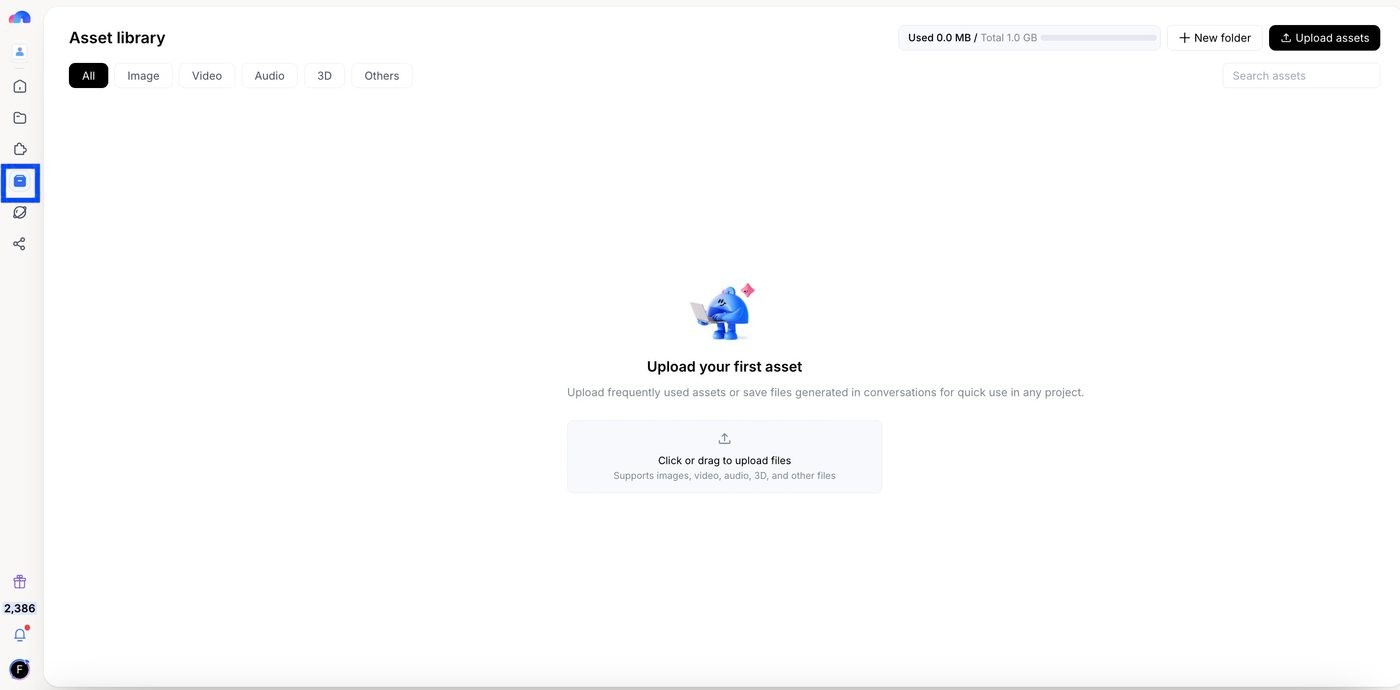
Upload and organize
- Upload assets — add images, video, audio, 3D files, and documents.
- New folder — group assets by client, project, or type. Folders keep a growing library usable.
- Filter by type (image, video, audio, 3D, other) when you are looking for something specific.
Use an asset in a build
There are two ways to attach files to a conversation, and the difference matters:
Both are in the + menu next to the prompt box, on the Home page and in the editor.
Attaching an asset is how you get your own logo, photos, or brand material into a generated app, rather than accepting the placeholder images MeDo picks.
Storage quota
Your library has a capacity limit, shown at the top of the page as used versus total. The Free plan includes 100 MB with a 50 MB limit per file; Pro and Max include 1 GB and 500 MB per file. When you approach the limit, upgrade your plan or delete assets you no longer need. See Subscription & Billing.
In an enterprise space, capacity is allocated by an administrator. If your team space has no allocated asset quota, the library will tell you to contact an admin. See Enterprise & Teams.
Tips
- Upload at the size you want displayed. Very large images make a published app slow to load.
- Give files meaningful names — you will be picking them from a list later.
- Keep client work in separate folders so nothing ends up in the wrong project.
Related
- Creating a site — build from an uploaded file or image.
- Editing your app — swap an image in an existing app.
- Enterprise & Teams — how quota works in a team space.