
General Tasks
Get work done without building an app: generate videos, images, slides, and analyses, extract web content, chain tasks together, and share the result.
Sometimes you do not want an app — you want the work done. Describe the job and MeDo produces the file: a video, an image, a slide deck, a data analysis, a summary of a web page. General Tasks use the same prompt bar, the same Skills, and the same credits as app building; the difference is that the output is a file rather than a site.
Start a task
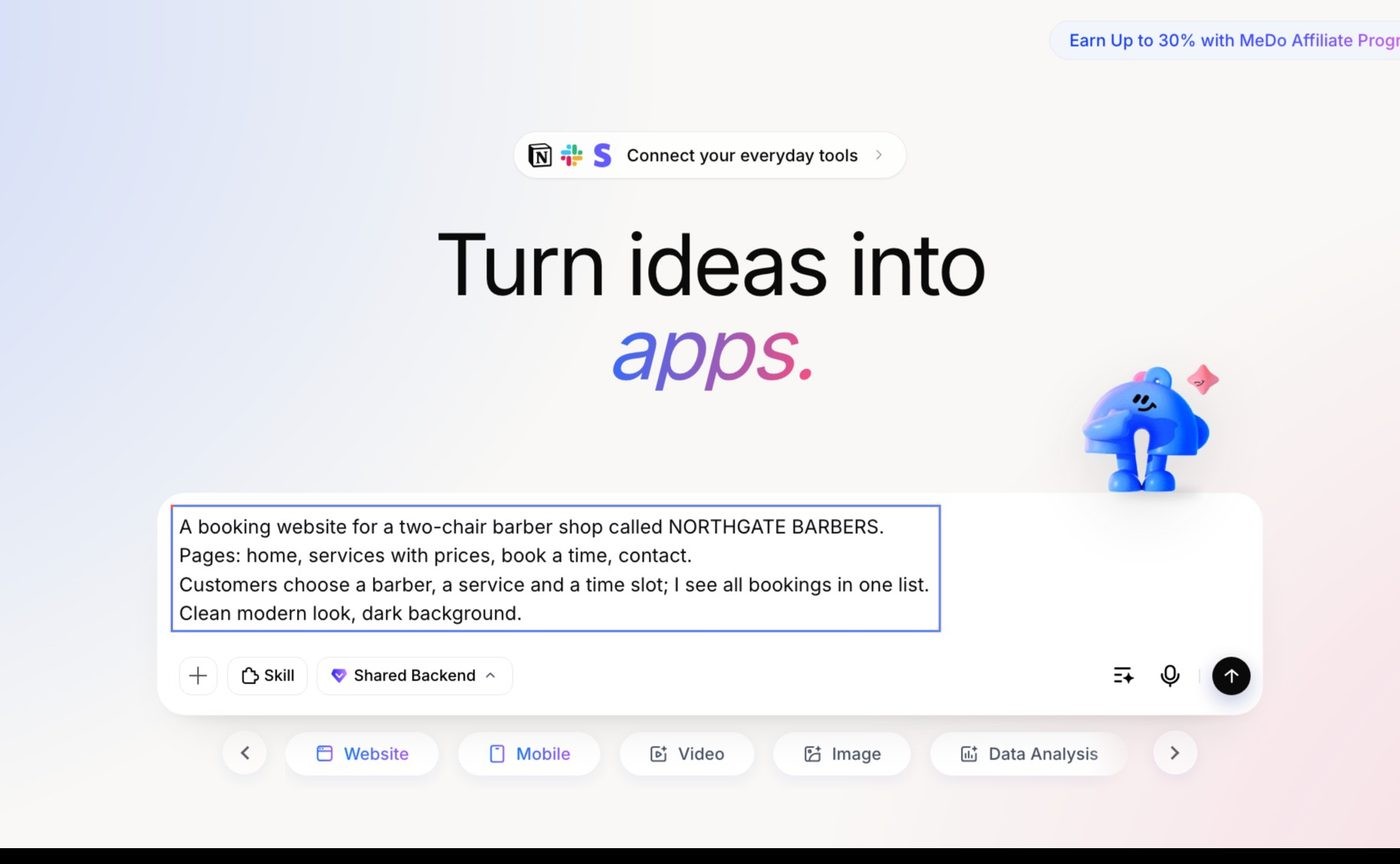
On the Home page, the row of buttons under the prompt box lists what MeDo can make (scroll it with the arrows to see them all). The first two — Website and Mobile — build apps. The rest are tasks:
Picking a task changes the placeholder text in the box and the suggested prompts underneath it, and tells MeDo which Skills to reach for first. You can also skip the row and just describe the job — MeDo works out the type from what you write.
Attach inputs with + → Upload or Add from asset library: the spreadsheet to analyse, the photos to animate, the notes to turn into slides. Name a specific Skill with @ when you have a preference — "use @Image Generation Omni (Kling) for the poster".
Chain tasks together
A task's output is available to the next one, so you can work in steps:
- Extract a competitor's pricing page → analyse it → build a comparison slide deck.
- Analyse last quarter's sales CSV → generate a report → build a dashboard Website from the same data.
- Generate three campaign images → build a landing page that uses them.
Just keep talking in the same conversation: "Now turn that into a 10-slide deck." Upload more files or add requirements at any point.
The task page
When you send a task, MeDo opens a task page. It is a slimmer version of the app editor — the conversation on the right, and on the left:
- Files — everything you uploaded and everything MeDo produced. Preview documents (
doc,docx,pdf,txt,md), spreadsheets (xls,xlsx,csv), images, video, and audio in place, and download any file. - Code — any code MeDo wrote while doing the work, for example the analysis script behind a chart.
- Skill — the Skills called during the task.
Tasks appear in your Project list alongside apps, so you can come back to one later and continue.
Share a task
Click Share at the top right of the task page to get a link. Anyone with the link can see the steps MeDo took and the files it produced. Share only tasks whose inputs you are happy to make visible.
What tasks cost
Each completed message is charged at the Fast or Deep Build rate (10 or 40 credits), and any Skill the task calls is charged per call at the price on its card — after the daily free quota is used up. Video generation is the expensive one; check the Skill Center price before generating several variants. See Credit System.
Tips
- Put the whole brief in one message when the goal is clear: audience, format, length, tone, and any constraints.
- Upload the source files before you describe the task, so MeDo can look at them while planning.
- Use Deep Build for research, multi-step analysis, and long documents; Fast Build for a single image or a quick summary.
- If the first result is close, say what to change rather than starting over — the files and context are already there.