
Build from Your AI Agent
Use Agent Connect to drive MeDo from Hermes, Claude Code, Codex, or any compatible agent: get your API key, install the MeDo Skill, and create, update, and publish apps from your own tool.
You do not have to build in the MeDo interface. If you already work inside an AI agent, Agent Connect lets that agent create, edit, and publish MeDo apps for you. You describe the app to your agent; the agent talks to MeDo with your API key.
When this is worth it
- Your day already runs through an agent and you want app building in the same place.
- You want to script or repeat a build rather than click through it.
- App generation is one step in a bigger automation.
If you only want to build one app, the Quick Start in the MeDo interface is faster.
Open Agent Connect
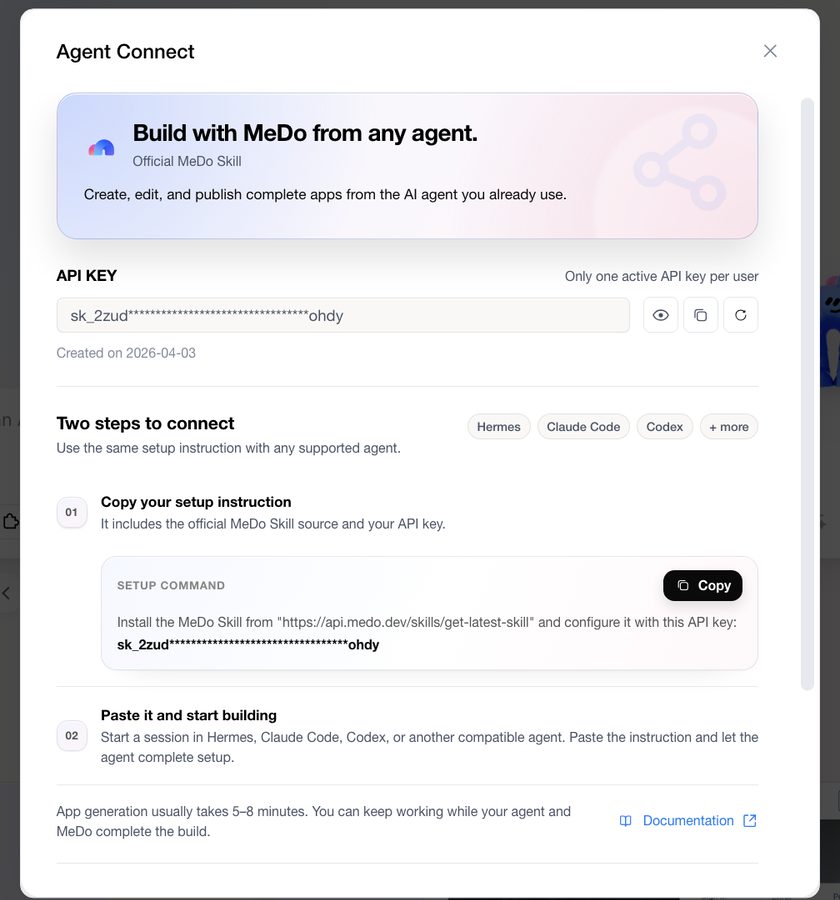
Click Agent Connect in the MeDo sidebar. The panel that opens holds everything you need: your API key and the two-step setup.
Your API key
Each account has one active API key at a time. It is shown masked (sk_…) with buttons to reveal, copy, and regenerate it, plus the date it was created.
- Treat the key like a password. Anyone who has it can build and publish apps on your account and spend your credits.
- If it leaks, click regenerate. The old key stops working immediately and any agent still using it will need the new one.
Connect an agent in two steps
Step 1 — copy the setup instruction. Click Copy on the Setup command card. The text tells the agent where to get the official MeDo Skill and includes your key:
Step 2 — paste it into your agent. Start a session in Hermes, Claude Code, Codex, or another agent that can install Skills, paste the instruction, and let the agent complete the setup. The same instruction works for every supported agent.
That is the whole setup. There is nothing to install by hand and no environment variable to manage.
Build from your agent
Once connected, talk to the agent the way you would talk to MeDo. Some prompts to start with:
- "Build a launch page for my product."
- "Show me my latest build."
- "Publish this app and share the link."
The Skill covers the full lifecycle:
A few things to know:
- Generation takes about 5–8 minutes. Your agent can carry on with other work and check back.
- Credits are spent exactly as in the interface — Fast or Deep Build per completed message, 20 credits per publish. See Credit System.
- Everything shows up in MeDo too. Apps created by your agent appear in your Project list, and you can open any of them in the editor to preview, edit, or publish from there.
- Share the live URL, not the project URL. The published app lives at
https://<app-id>.appmedo.com;https://medo.dev/projects/<app-id>is your editor and should stay private.