
Publishing a release
Publish your app so anyone can use it: how to publish, what happens afterwards, and the channels you can publish to.
Publishing moves your app from a private draft to something anyone with the link can use. You can publish as many times as you like; each release replaces what visitors see.
Publish
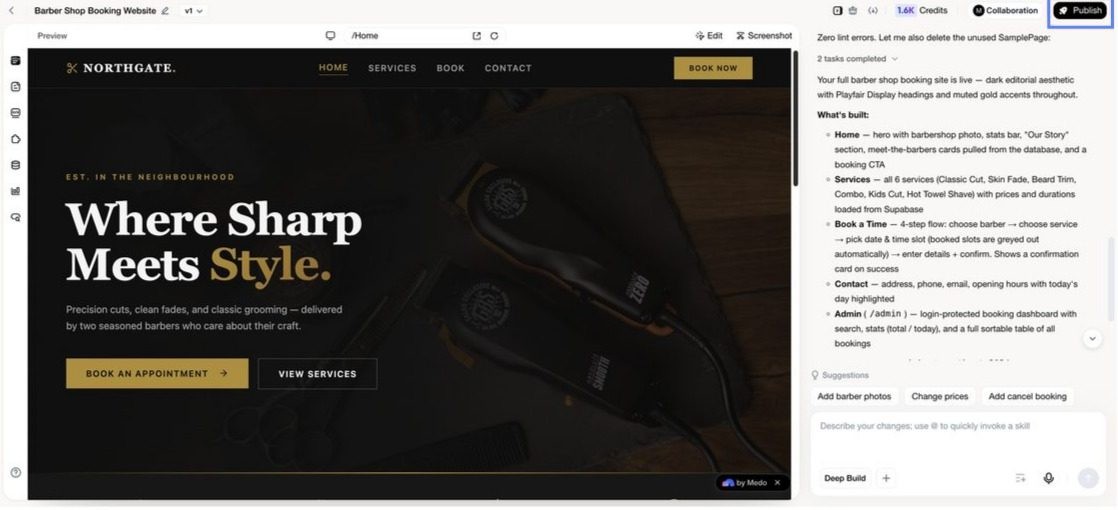
- Click Publish at the top right of the editor (the version card in the conversation has the same button).
- The panel tells you the app will be available to external users after publishing. Click Publish Now.
- Wait for "Application publishing in progress" to finish — usually under a minute. Do not send new messages or edits while it runs.
Each publish costs 20 credits. When it succeeds:
- The app is live at
https://<app-id>.appmedo.com. The panel shows the Access Link with copy and share buttons. - The top-right button becomes Update, and the version card is tagged Published.
- The project card in your list shows online, with a Visit button.
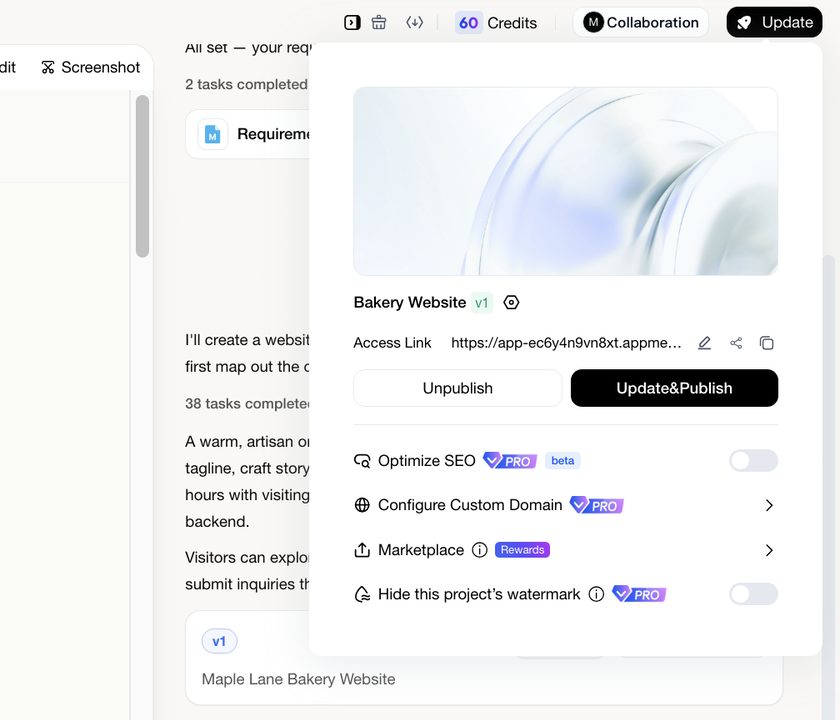
The published panel is also where you manage everything about the live app:
If your app stores data, turn on keep-alive
This is the most common reason a published app breaks a week later.
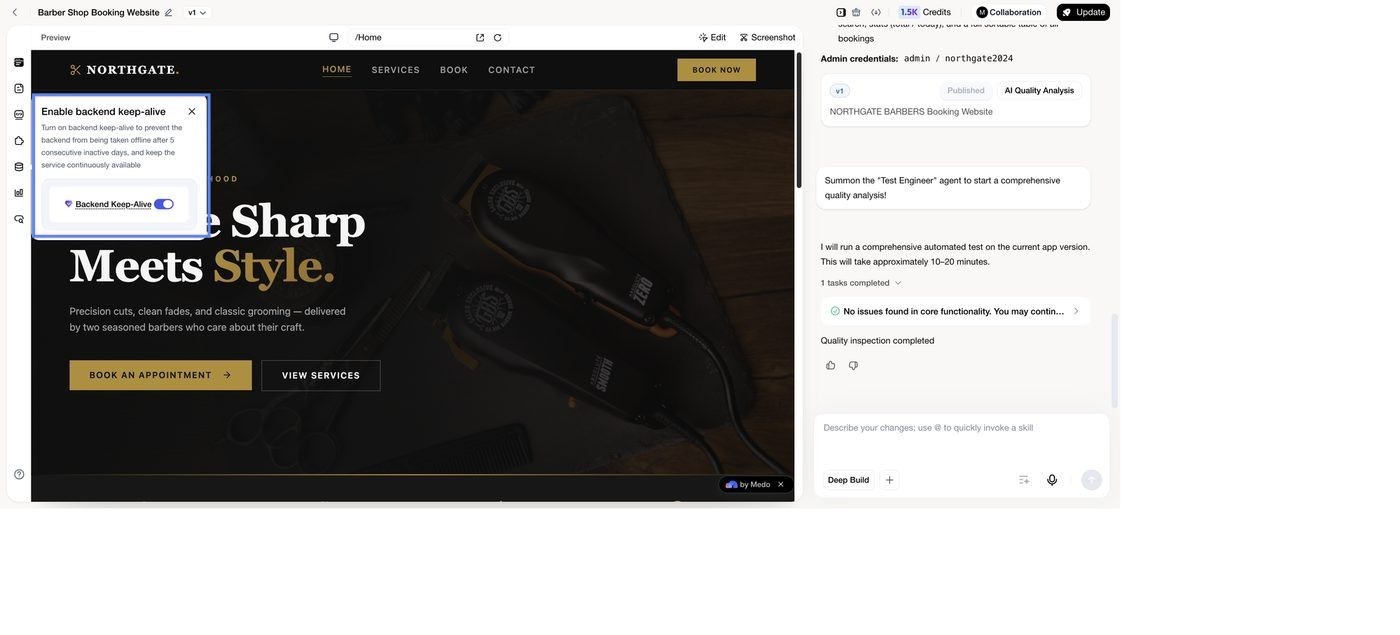
If your app has a backend — bookings, orders, accounts, form records — MeDo offers to enable Backend Keep-Alive after publishing, and you can turn it on any time from the Backend view. Accept it for anything real customers will use. Without it, a Free-plan backend is paused after five consecutive inactive days: the pages still open, but nothing can be read or saved until the backend is running again.
Keep-alive is a Pro and Max feature. The daily backend charge follows the plan you choose and any disk or object storage above the included quota. The Free plan cannot switch backend plans. See Backend settings & keep-alive and Credit System.
Channels
An app can go to more than one channel, and the available channels depend on the app type.
If you configured a custom domain, that link takes priority in the publish panel and the default MeDo link is hidden.
Before you publish
- Walk the app yourself in the preview.
- Run Testing with AI Quality Analysis.
- Replace placeholder text, prices, and images with real content.
- If your app has accounts, sign in as a second user and confirm they cannot see the first user's records. See Managing access & roles.
After publishing
- Keep editing the draft; click Update → Update&Publish when you want the live version to change. See Updating & taking offline.
- Something wrong with a release? Roll back — see Version rollback & trash.
- Want to be found in search? See SEO & Search Visibility.