
Version rollback & trash
Create app versions, roll back to an earlier release, and recover or permanently delete apps from the Trash.
Apps keep a version history so you can track releases and recover from mistakes. Deleted apps go to the Trash before they are permanently removed.
App versions
Every completed build gets a version — v1, v2, and so on — and a card in the conversation. Click the version button (v1, v2…) in the top bar of the editor to open Historical Versions:
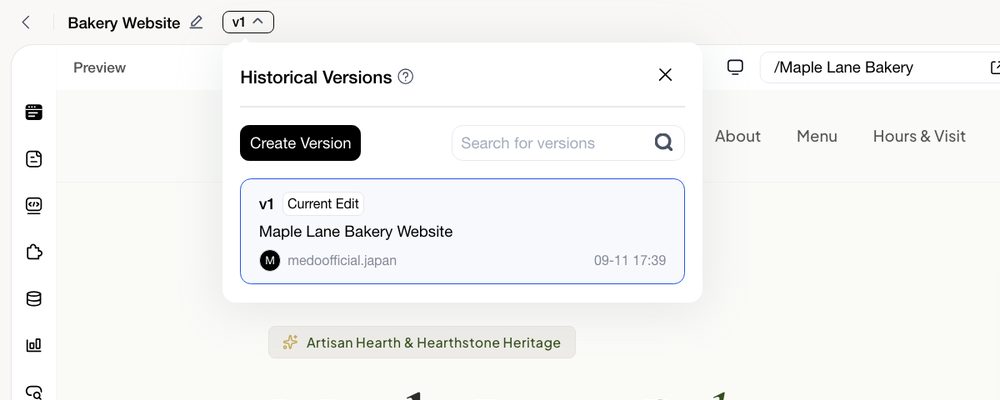
- The list shows each version with its name, who created it, and when. The one marked Current Edit is your draft.
- Create Version snapshots the current draft under a name you choose. Do this before a risky change so you have a known-good state to return to.
- Search by name when the list gets long.
Roll back to an earlier version
- Open Historical Versions and find the version you want.
- Restore it. It becomes the current draft; check it in the preview.
- Click Update → Update&Publish so visitors get that version (20 credits).
Rolling back does not delete newer versions — they stay in the list, so you can move forward again later.
Trash and restore
When you choose Move to trash on an app card, MeDo asks you to confirm and warns what happens straight away:
- the app is taken offline and removed from the Marketplace (publish again after restoring);
- its custom domain is disconnected (configure it again after restoring);
- its custom URL prefix is released (configure it again after restoring).
The project then sits in Trash — the button at the top right of the Project page — for 30 days, showing its deletion time and an expiry countdown. From there you can Restore it, which brings back the pages, conversation, backend configuration, and data, or Permanently delete it.
Best practices
- Create a version before a risky change so you have a known-good state.
- Test the rollback target in preview before switching live.
- Empty the Trash only when you are sure you no longer need an app.