
Install on specific devices (Ad Hoc)
Give your MeDo app to a small, fixed group of iPhones without App Store review: register each phone, package in MeDo, and share the install link or QR code.
Ad Hoc is for a known list of phones — a client demo, a five-person pilot, a trade-show device. Each phone is registered with Apple in advance, MeDo builds an app that only those phones can run, and people install it from a link or QR code. There is no Apple review, but also no way to add a phone later without building again.
If your testers change often or you cannot get their phones' IDs, use TestFlight instead — it is simpler for everyone.
Before you start
- Apple Developer Program membership (US$99/year) — see the TestFlight guide for enrolment.
- Your App Store Connect key (Issuer ID, Key ID,
.p8file). If you have not created one, follow Part 1 of the TestFlight guide. It must be a Team Key. - The UDID of every phone that will install the app (next section).
- 500 credits per packaging run, refunded if it fails.
Apple allows 100 registered iPhones per year on your account, and removing a phone does not free its slot until your membership renews. Register only the phones you really need.
Part 1 — Collect each phone's UDID
A UDID is a phone's unique identifier — a long string of letters and numbers. Ask each tester to send you theirs:
- With a Mac: plug the iPhone into the Mac, open Finder, click the phone in the sidebar, then click the line of text under the phone's name until it shows UDID. Right-click it → Copy.
- With a Windows PC: plug the phone in, open iTunes, click the phone icon, then click Serial Number until it changes to UDID. Right-click → Copy.
- On the phone alone: there is no built-in way. A quick alternative is to install the app through TestFlight instead, which needs no UDID.
Copy-paste the UDID exactly — a single wrong character means that phone cannot install the app.
Part 2 — Package in MeDo
- Open your Mobile project → Export installation package → iOS App tab → Packaging V… version → Public Release / Invite Testing → Use this option.
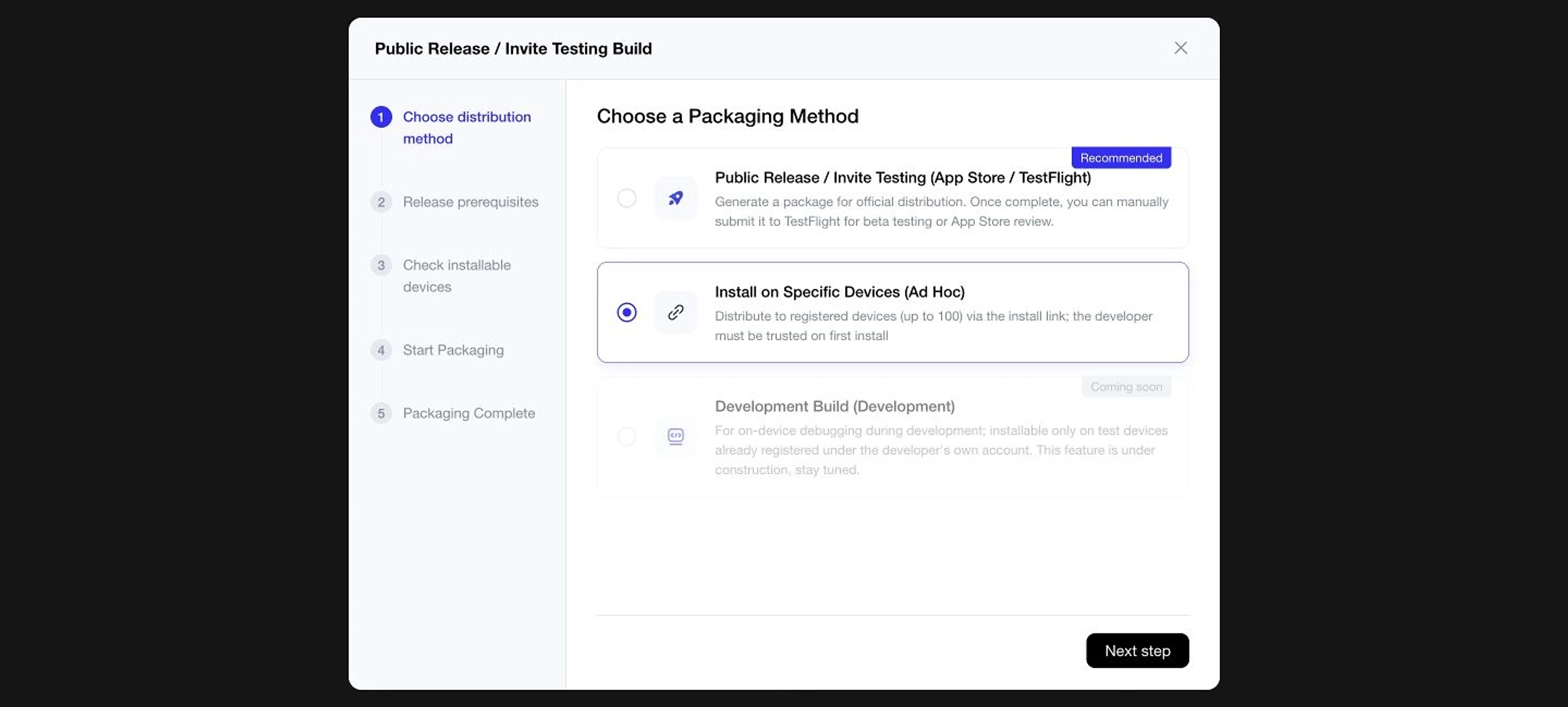
- On Choose a Packaging Method, select Install on Specific Devices (Ad Hoc) and click Next step.
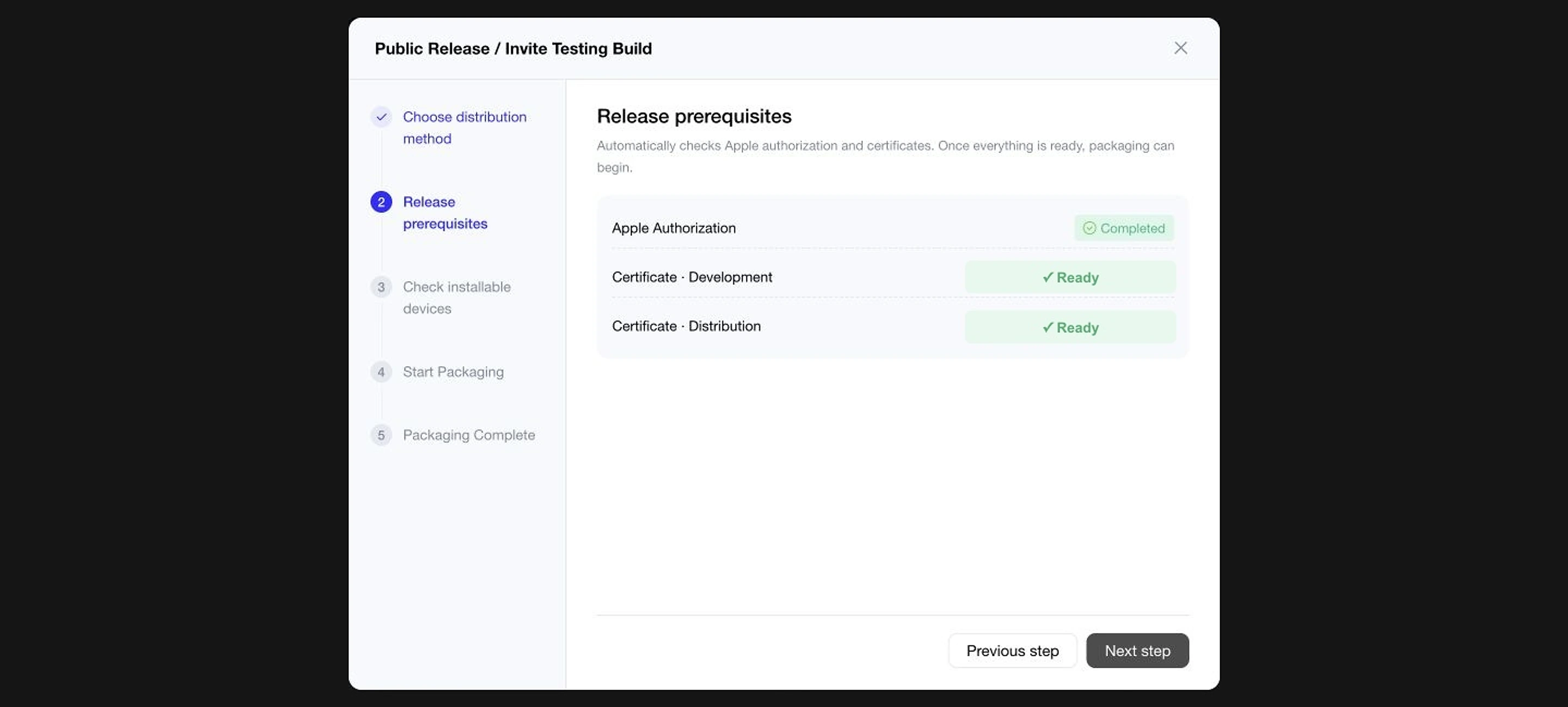
- On Release prerequisites, enter your Issuer ID and Key ID and upload the
.p8file if MeDo has not stored them yet. Wait until Apple Authorization shows Completed and the certificates show Ready.
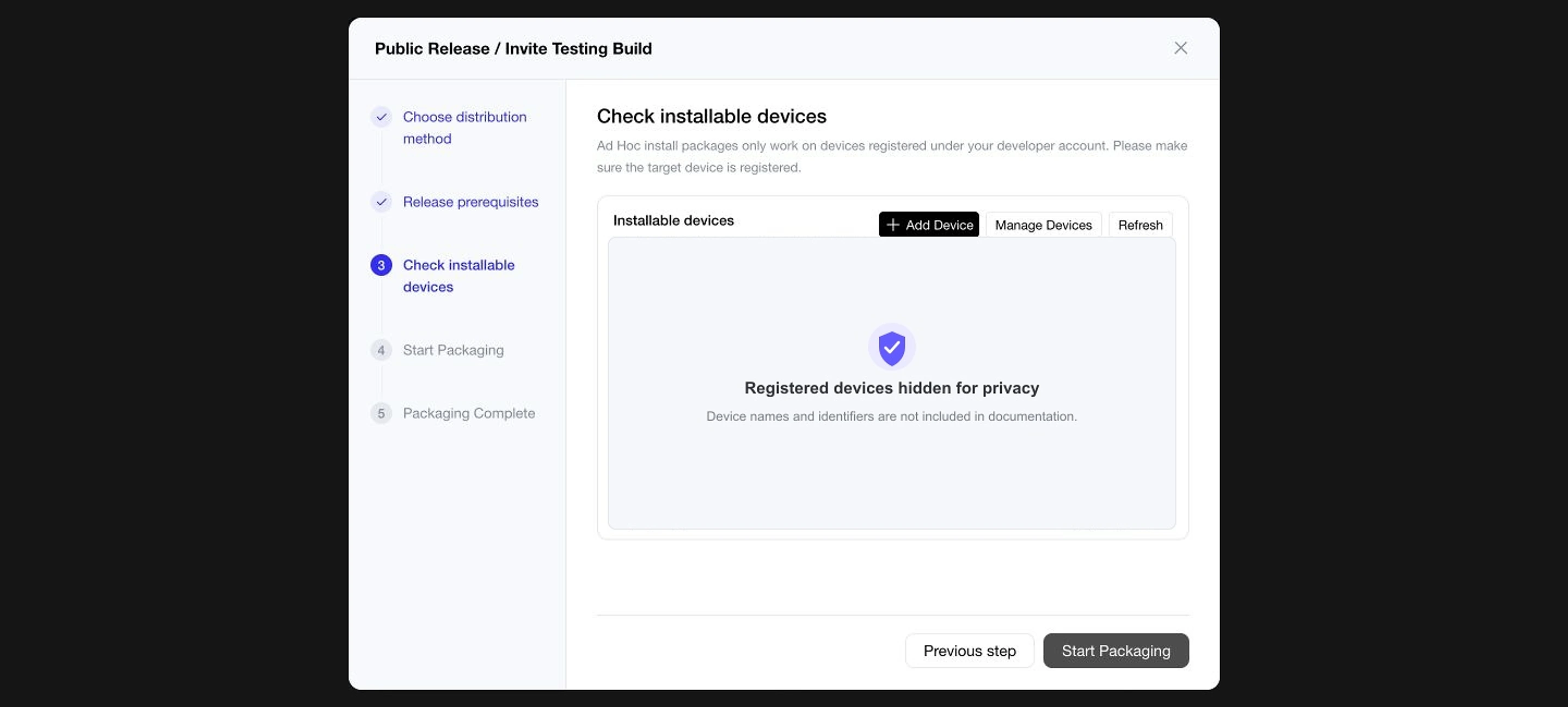
- On Check installable devices, click Refresh. Every phone that may install the app must be listed as Installable.
- Missing a phone? Click Add Device, paste its UDID and give it a name (for example "Anna's iPhone"), and save. This uses one of your 100 yearly slots.
- Manage Devices opens Apple's device list if you prefer to work there.
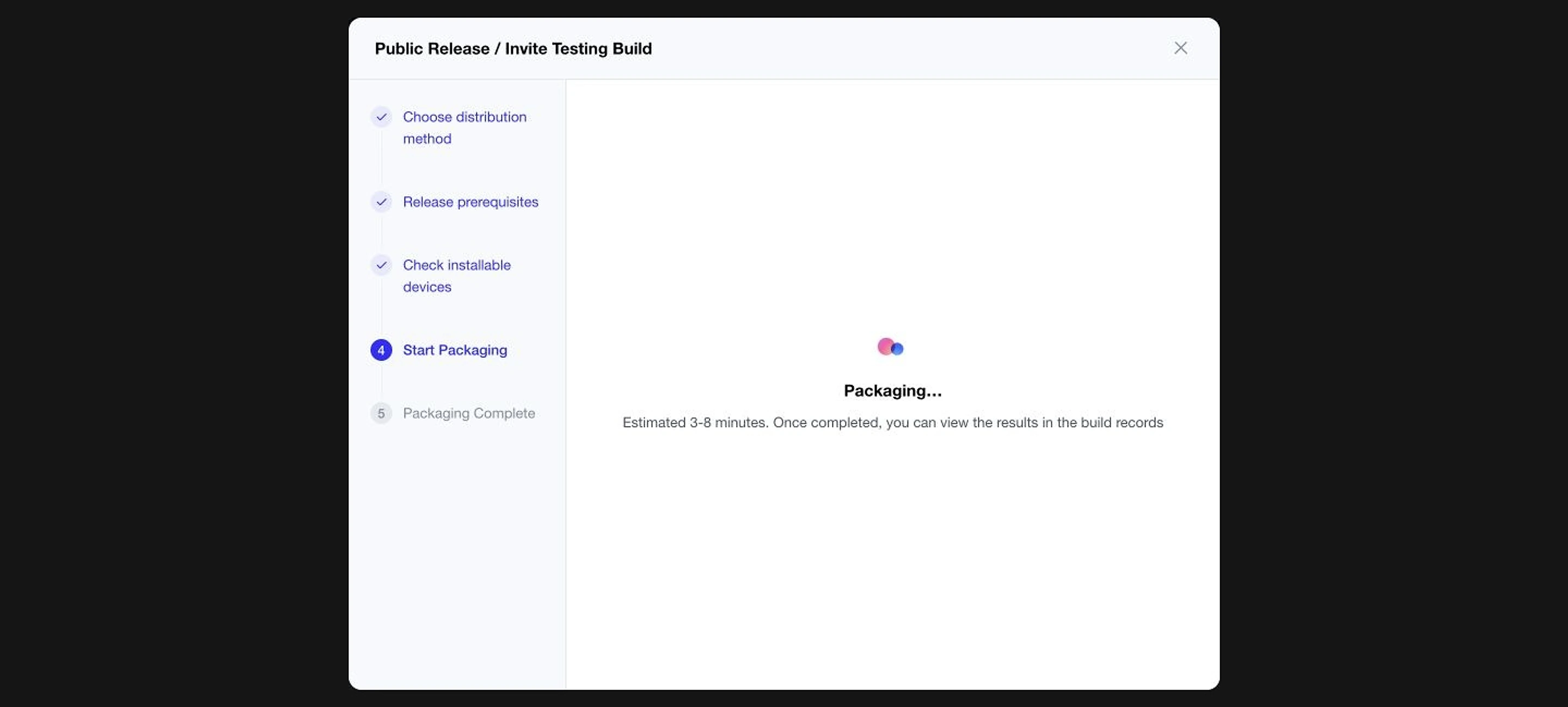
- Click Start Packaging and wait 3–8 minutes.
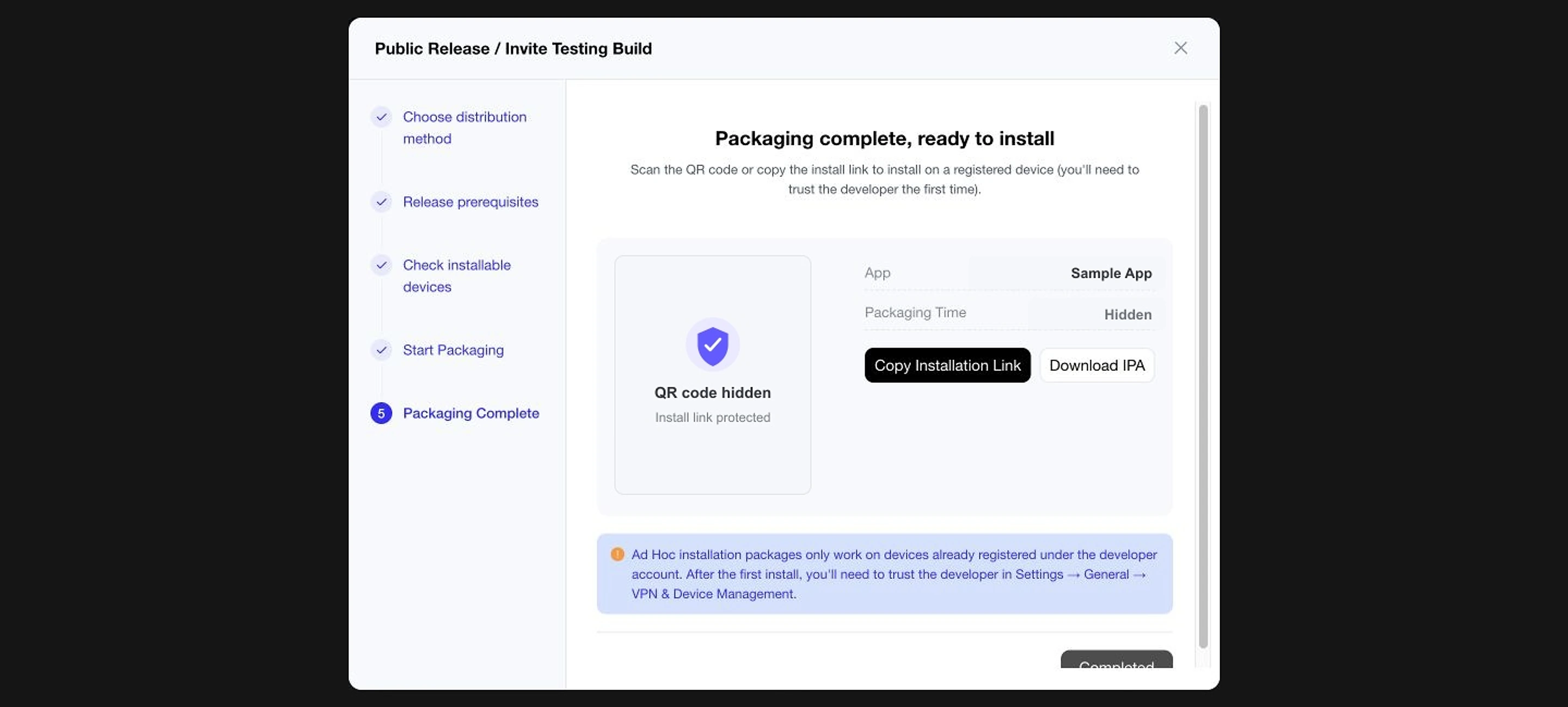
- On Packaging Complete you get an install QR code, Copy Installation Link, and Download IPA.
Part 3 — Testers install the app
Send each tester the installation link (or show them the QR code). On a registered phone:
- Open the link in Safari (other browsers will not work) and tap Install when the phone asks.
- Go to the home screen; the icon appears and the app downloads.
- If the phone shows a developer-trust message when opening the app, follow its prompts (Settings → General → VPN & Device Management → tap the developer name → Trust).
The app keeps working as long as your Apple membership and the provisioning profile are valid (profiles last about a year). On a phone that is not registered, the install simply fails — that is expected.
Adding a phone later
Register the new UDID (Part 2 step 4) and package again — an existing build cannot learn about new phones. Then share the new link. If this keeps happening, move to TestFlight.