
Enterprise & Teams
Build with a team: the Enterprise plan and seats, team spaces, inviting people, per-project collaboration, moving projects between spaces, and team credits and storage.
By default everything you build lives in your Personal Space, and only you can open it. When several people need to work on the same apps, you need a team space, which comes with the Enterprise plan.
Personal space vs team space
- Personal Space — yours alone. Projects spend your credits and use your asset library.
- Team space — shared by the members of an enterprise. Projects belong to the space, spend credits assigned to the space, and can be opened by anyone the project is shared with.
The space switcher at the top of the sidebar shows which space you are in. Check it before you start a build — it decides where the project goes and whose credits it uses.
The Enterprise plan
Click Collaboration in the editor from a personal space, or open Plans & Billing, to see the Enterprise plan:
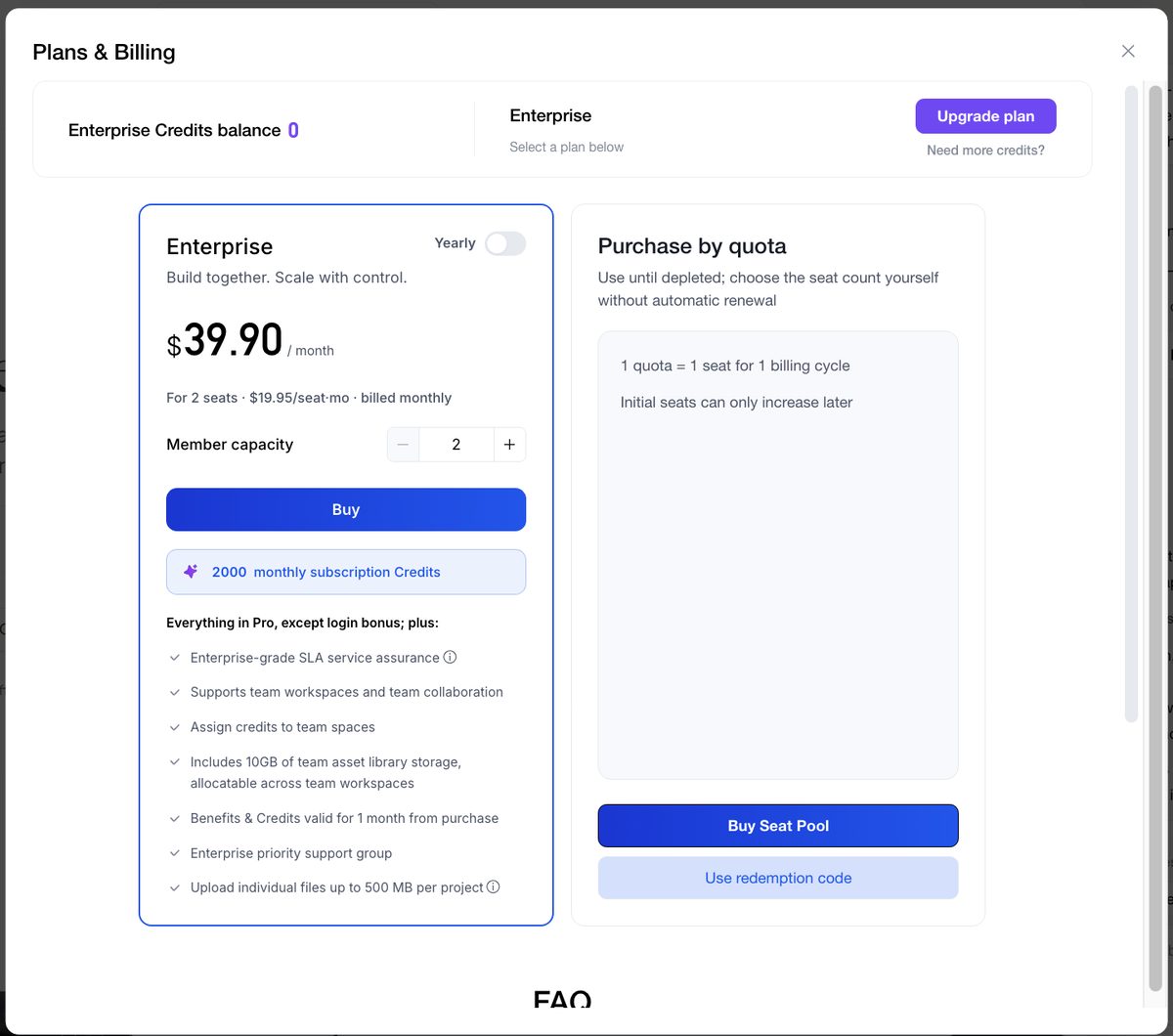
- $39.90 per month for 2 seats ($19.95 per seat per month), billed monthly, with a yearly option. Use the Member capacity control to add seats.
- 2,000 subscription credits a month, plus everything in Pro except the daily login bonus.
- Enterprise-grade SLA and a priority support group.
- Team workspaces and collaboration, and the ability to assign credits to team spaces.
- 10 GB team asset library, allocatable across spaces, with 500 MB per uploaded file.
- Benefits and credits are valid for one month from purchase.
Set up the team
- Buy the Enterprise plan. An enterprise is created with you as its administrator.
- From the space switcher, open the enterprise and create one or more team spaces — one per team or client works well.
- Assign credits and asset library capacity to each space from the enterprise management page. A space with no credits cannot build, and one with no asset capacity cannot upload; both tell members to contact an admin.
- Invite members with the invite link from the space or enterprise management page. They appear in the member list once they accept and take up a seat.
Share a single project
Space membership does not automatically open every project. To bring people into one app, open it and click Collaboration at the top of the editor. For each collaborator choose:
You also choose who in the space can see the project: everyone in the team, specific members, or private.
In a personal space, Collaboration shows the Enterprise plan instead of the sharing options. Switch to a team space first.
Move a project between spaces
Open the … menu on a project card in the Project list and choose Migrate to Another Space. You can move a personal project into a team space so colleagues can work on it, or take a project out of a team space when a client engagement ends. After the move, the project spends the destination space's credits and uses its asset library.
Credits in a team
- Subscription credits go into the enterprise pool; the administrator assigns them to spaces and can reclaim what is unused.
- Members spend the credits of the space they are working in, not their personal balance.
- Costs are the same as for individuals — see Credit System. Each app that shares a backend still pays that day's backend charge on its own.
Good habits
- One space per team or client, so apps and credits stay separate.
- Give Edit to the people who build and Admin to one or two owners.
- Assign credits deliberately and reclaim them when a project wraps up.
- Review the member list when someone leaves the team, and remove them to free the seat.
Related
- Subscription & Billing — the individual plans.
- Using the Asset library — how storage works in a team space.