
Managing sign-in & users
Give your app its own user accounts, let visitors use it without signing in, and review who has registered.
Your published app can have its own users, separate from your MeDo account. This page explains what MeDo provides, how you turn it on, and what you can see afterwards.
How your app gets sign-in
There is no separate switch to flip. Ask for it in the conversation — for example:
MeDo then adds the sign-in screens, connects them to your app's backend, and enables the account features described below. If your app needs accounts but you never asked for them, ask now and republish.
What your app's users can sign in with
If you need stricter behaviour — for example, only invited people, or required email confirmation — say so in the conversation so it is built into your app's own logic.
Redirect addresses are handled for you
Sign-in only works when the login provider trusts the address your app is served from. MeDo keeps that list in sync automatically: your editor, preview, and published URLs are registered when the app is created, and your custom domain is added when you connect one. See Custom domains & SSL.
See who registered
Open the app in the editor, click the Backend icon in the left rail, switch to the environment tab, and choose User management. Every account created in your app is listed with:
- user ID
- email address and phone number (whichever they signed up with)
- sign-in provider
- when they registered
- when they last signed in
Search by email, phone, or user ID to find one account. A project with no accounts yet shows Your project currently has no users; the same columns fill in once people sign up.
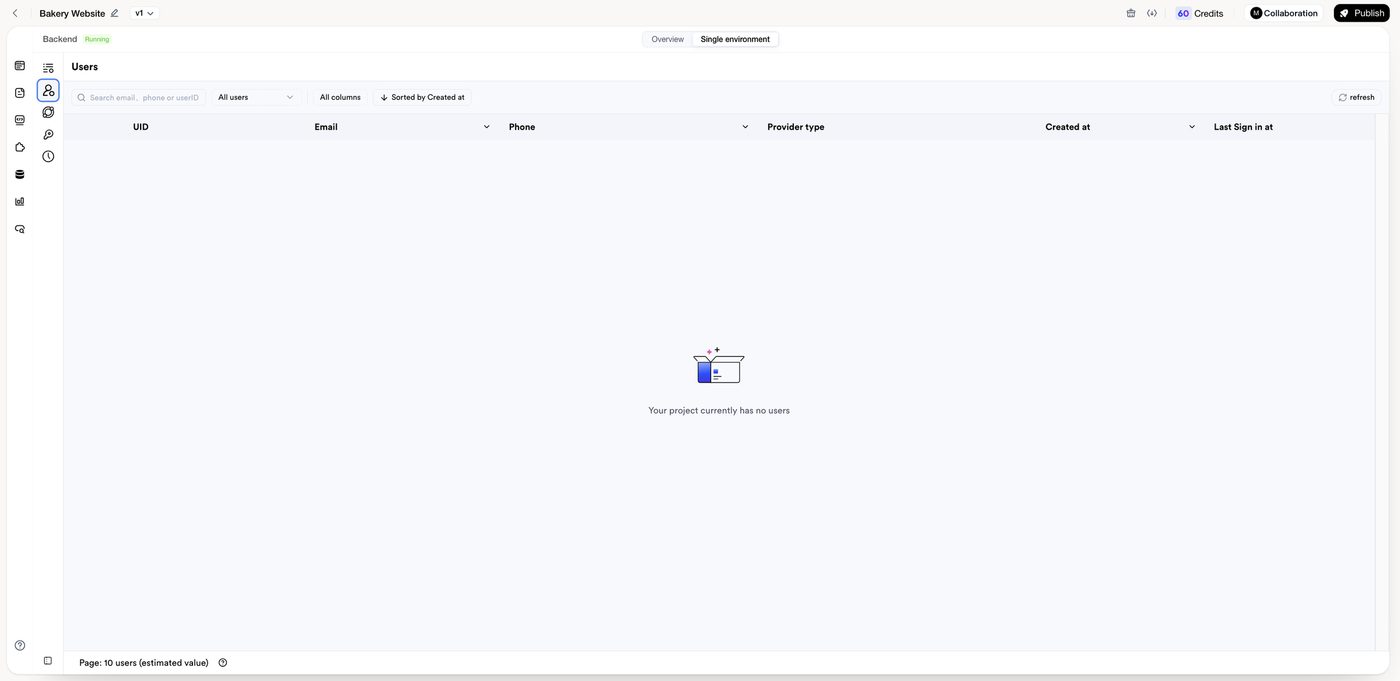
Use the list to confirm that registration works and to check activity. For day-to-day customer management — searching orders, blocking an account, exporting a list — ask MeDo to build an admin screen inside your app; see App data & forms.
What is not available
- There is no switch in the current version to make a published app private, password-protected, or invite-only. Anyone with the link can open it. If access must be restricted, put that logic in the app itself — for example require sign-in before any content is shown, and only reveal records that belong to the signed-in user.
- There is no role or permission panel. Roles live in your app's own data. See Managing access & roles.
Related
- Managing access & roles — restrict which records each user can read or change.
- Keys & data safety — where to keep credentials.
- App data & forms — review the data your app collects.