
Updating & taking offline
Change a published app and release the update, or take the app offline when you no longer want it public.
Publishing is not the end of the project. This page covers the two things you do afterwards: releasing changes, and taking the app down.
Update a published app
The draft and the live app are separate
Editing never touches what visitors see. Your changes go into the draft, and the live app keeps serving the last release until you publish again. That means you can rework a page for days without anyone noticing.
Make the change and release it
- Open the project from Project in the sidebar (hover the card and click Edit).
- Make the change — in the conversation, in Edit mode, or with a screenshot. See Editing your app.
- Check it in the preview.
- Click Update at the top right, then Update&Publish in the panel.
Each release costs 20 credits, the same as the first publish. Your edits are saved automatically as you work, so there is no separate save step. The project list shows when each app was last edited, which is the quickest way to see what you have been working on.
Nothing goes live until you click Update. If you changed something and visitors still see the old version, you have not released it yet.
For rolling back a release you regret, see Version rollback & trash.
Take an app offline
Use this when an app should stop being publicly available — a campaign has ended, a client engagement is over, or you published something by mistake.
Either:
- in the editor, click Update and then Unpublish in the panel; or
- in the project list, open the … menu on the app card and choose Unpublish.
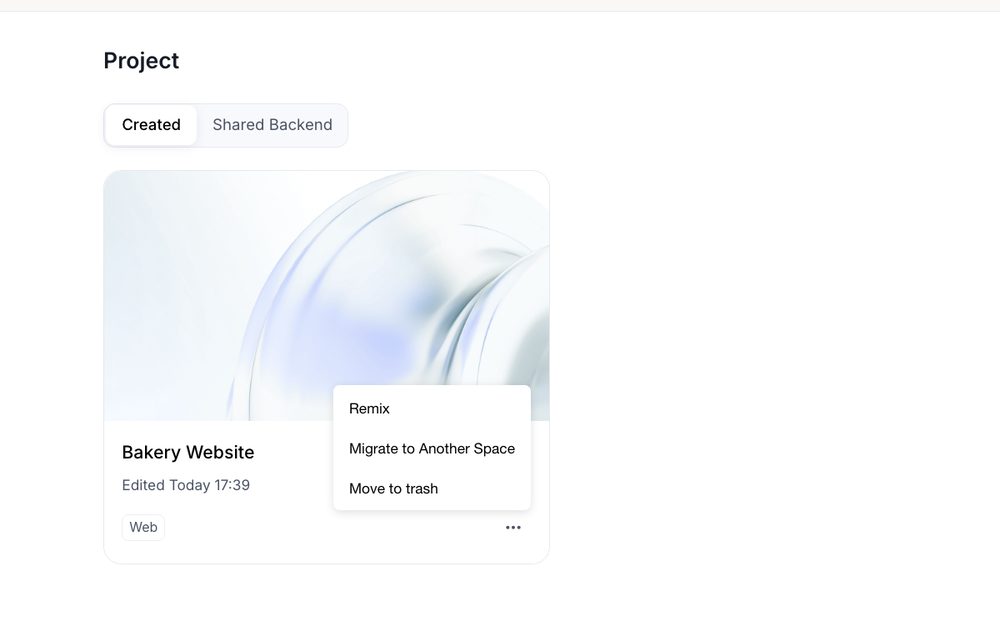
After that:
- Visitors can no longer open the app.
- The project itself is untouched — you keep the pages, the data, and the conversation.
- You can edit it and publish again at any time to bring it back.
Taking an app offline is not the same as deleting it. Move to trash in the same menu moves the project to Trash, where it stays recoverable for 30 days. Publishing again later costs 20 credits.