
Publish on the App Store
Prepare App Store Connect metadata, privacy and regional compliance, submit a MeDo iOS build for review, and release it safely.
Before You Start
This page is the last step of the paid route. By now you should have followed Share with testers and release (TestFlight → App Store): the app has a page in App Store Connect, a build has been uploaded from MeDo, and you have opened it on a real phone through TestFlight.
What is left is paperwork on Apple's website — describing the app, answering privacy questions, and pressing Submit for Review. Work through the numbered sections in order; each one maps to a section of your app's page in App Store Connect. Expect Apple's review to take one to three days for a first submission.
MeDo builds with the toolchain Apple currently requires, so you do not need to worry about Xcode or SDK versions. Apple's rules do change, though, so skim Apple’s upcoming requirements before each release.
1. Complete Account and Commercial Setup
- Keep the Apple Developer Program membership active.
- Accept current agreements in the Apple Developer account and App Store Connect.
- For paid apps or in-app purchases, complete the paid-app agreement, tax forms, and banking information.
- Confirm that the seller identity is correct. Individual enrollment displays the person’s legal name; organization enrollment displays the legal entity name.
- Assign the people preparing and submitting the app the minimum necessary App Store Connect roles.
2. Create or Verify the App Record
In App Store Connect, create an app record before the first MeDo upload.
The App Store display name does not need to match the iPhone home-screen name exactly, but it must accurately represent the same app. The Bundle ID must match exactly.
3. Prepare the Product Page
Go to the app’s version page and complete the primary-language metadata. Add localized metadata rather than using machine-translated text for important markets.
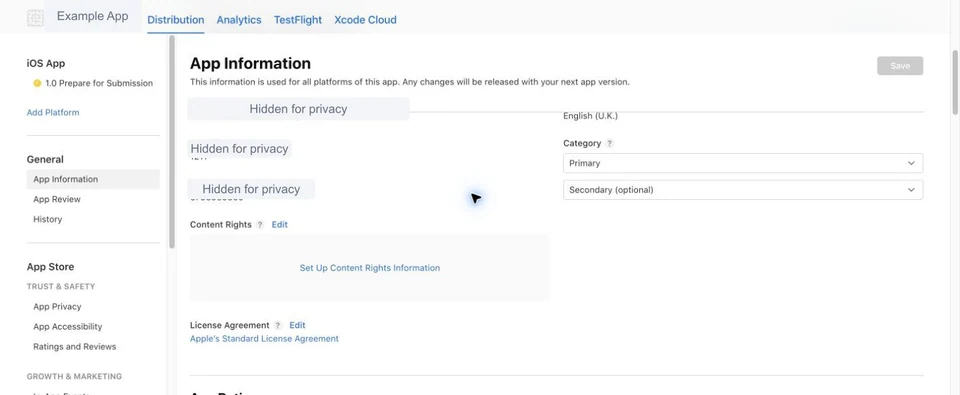
Screenshots must represent the current app experience. If the interface is the same across device sizes, App Store Connect can scale the highest-resolution required screenshots to smaller sizes.
4. Privacy and Platform Compliance
Privacy Policy and App Privacy
Every iOS app needs a public privacy-policy URL in App Store Connect and an easily accessible privacy-policy link inside the app. The policy must match the released build, including third-party SDK behavior.
In App Privacy, declare:
- Every data type collected by the app or its third-party partners
- Whether each data type is linked to the user
- Whether it is used for tracking
- Collection purposes such as app functionality, analytics, personalization, or advertising
- A user-privacy-choices URL when you provide a web page for access, correction, consent withdrawal, or deletion requests
Do not publish an unchanged template. Customize any MeDo-generated draft with the real app owner, contact method, collected data, purposes, processors, retention, deletion process, and applicable regions.
Permissions, Tracking, and Accounts
- Add clear usage descriptions for camera, microphone, photos, location, contacts, Bluetooth, and other protected resources actually used by the app.
- Request permissions only when the related feature is invoked, and provide a reasonable alternative where possible.
- If data is used to track users across other companies’ apps or websites, implement App Tracking Transparency before accessing IDFA or performing tracking.
- If the app supports account creation, users must be able to initiate account deletion inside the app.
- If a third-party or social login is used for the user’s primary account, check whether App Review Guideline 4.8 requires an equivalent privacy-preserving login option such as Sign in with Apple.
SDK Privacy Manifests and Required-Reason APIs
You are responsible for all third-party code in the app. Before uploading:
- Review Xcode’s privacy report and the data use of every SDK.
- Ensure SDKs on Apple’s list include the required privacy manifest and, for binary dependencies, a valid signature.
- Declare approved reasons for covered required-reason APIs.
- Remove unused SDKs and permissions.
Encryption and Export Compliance
Answer App Store Connect’s encryption questions for the build. Even apps that only use standard operating-system encryption must make the correct determination. If no documentation is required, set the appropriate Info.plist value so the same questions do not recur. If documentation is required, obtain clearance and attach it before TestFlight Beta App Review or App Review.
5. Complete App-Level and Regional Declarations
Global or Feature-Dependent
Country and Region Examples
Regional requirements apply only when you select the relevant storefront and app type. Verify them in App Store Connect instead of copying another app’s checklist.
- China mainland — A valid ICP filing number is required for apps made available there. Games need the applicable publication approval number and supporting documents. Additional licenses may apply to news, books, audio/video, religion, finance, healthcare, mapping, and other regulated content. Organizations based in China mainland must also confirm identity information that Apple displays. A software copyright certificate may be needed for local filing or industry processes, but it is not a universal App Store requirement outside China.
- European Union — Declare DSA trader status. If you are a trader, verify the address, phone number, and email Apple will display.
- Republic of Korea — Some games require a GRAC rating-classification number. Organization developers may have additional business-contact requirements.
- Vietnam — Games may require a game-license number and URL.
- Brazil and other storefronts — Tax, content, or commercial documentation can affect availability, especially for paid distribution.
6. Supply Review Information
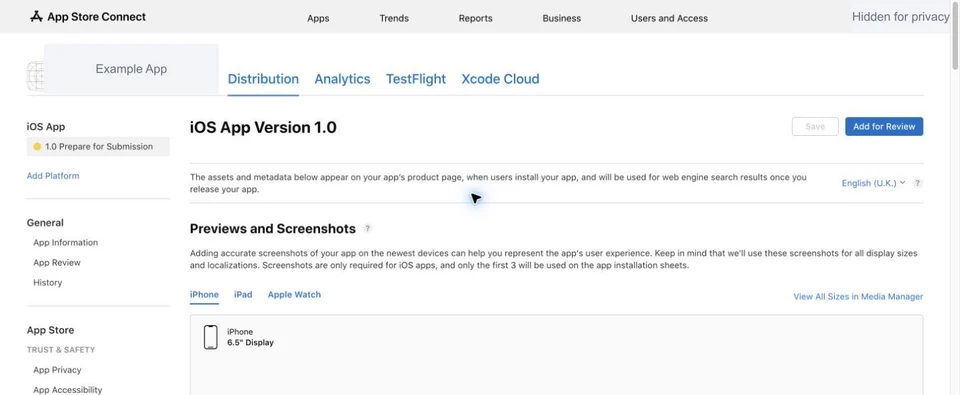
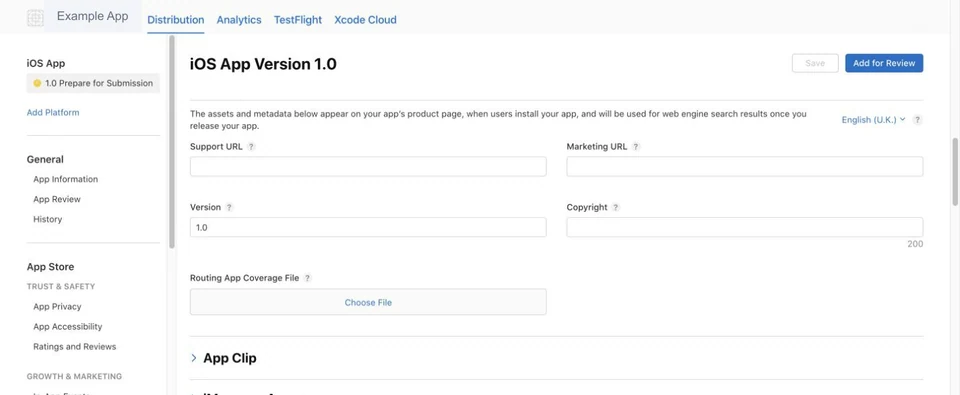
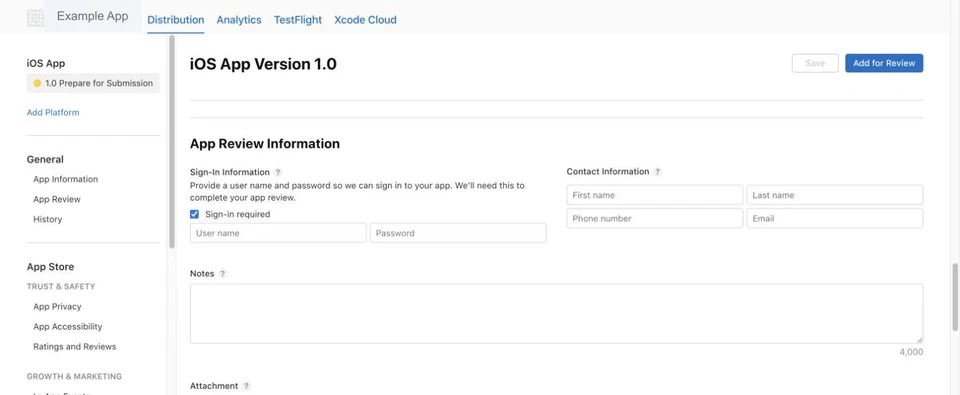
Keep backend services and the demo account working throughout review. Remove placeholders, test banners, broken links, empty pages, and disabled production features.
7. Pre-Submission Checklist
- The release build launches and completes every core flow on supported devices.
- Bundle ID, version number, and build number are correct.
- Xcode 26 / iOS 26 SDK or later was used.
- All URLs use HTTPS and work without employee-only access.
- Product-page metadata and screenshots match the build.
- Privacy policy, App Privacy answers, permission prompts, and SDK behavior agree.
- Account deletion, login, purchases, restore purchases, and subscriptions work where applicable.
- Age rating, content rights, encryption, DSA, medical, and regional declarations are complete.
- Demo credentials, review notes, and any required hardware or sample data are available.
- TestFlight feedback and crash reports have been addressed.
8. Submit and Release
- Add the version and build to the submission.
- Add any in-app purchases, subscriptions, custom product pages, or other review items that must ship together.
- Resolve every warning shown by App Store Connect.
- Submit for review and monitor App Store Connect messages.
- If Apple asks a question, reply with exact reproduction steps and supporting evidence.
- If rejected, fix the cited issue rather than submitting the same build with only a note unless Apple explicitly asks for clarification.
Choose the release mode deliberately:
- Automatic — Releases after approval.
- Manual — You release after approval; useful for coordinated launches.
- Scheduled — Releases no earlier than the selected date after approval.
- Phased release — Gradually rolls an update to existing users; it does not replace monitoring or rollback planning.
After release, monitor crashes, reviews, support requests, subscription and purchase status, and regional availability. Keep privacy declarations and support URLs current when the app or its SDKs change.