
Interface Tour
Find your way around MeDo: the home page, the sidebar, your project list, and the editor views.
A short map of the product, so the rest of the documentation makes sense. If you have not built anything yet, start with Quick Start instead.
MeDo's builder works on both mobile and desktop. You can chat, edit, preview, and manage projects from your phone or laptop.
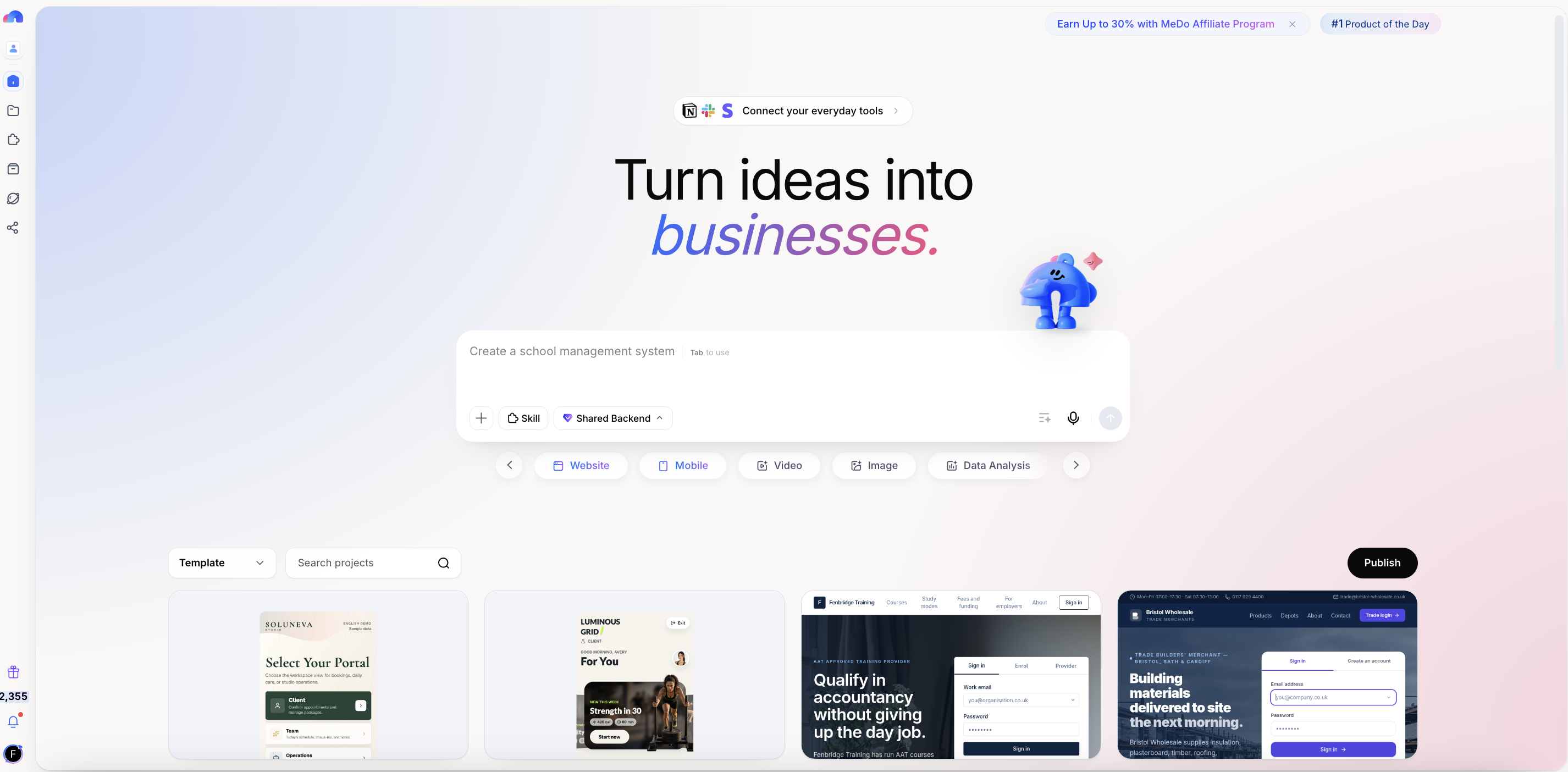
Home page
Where every build begins.
- Prompt box — describe the product you want. You can also attach files or images, or use voice input.
- + menu — open the plus button on the prompt bar. It holds Deep Build and Fast Build, plus Add from asset library and Upload. Build mode changes how thoroughly MeDo works and what each message costs. See Using build modes and Using the Asset library.
- Shared Backend — on the prompt bar, choose an existing backend so this new app shares data with one you already have. See Sharing a backend.
- Output types — a row under the box: Website and Mobile for apps, plus task types such as Slides, Image, Video, Data Analysis, Web Extract, and Skill Creation that hand you a file instead of an app. See General Tasks.
- Skill — click Skill on the prompt bar (or type
@) to open a catalog of tools — video, mail, calendar, payments, and more. A Skill is a packaged capability MeDo can use in the current task or build into your app. See Skills. - Marketplace — scroll down for live apps you can open or remix. See Marketplace.
Sidebar
Notifications
The bell in the sidebar carries three kinds of message:
- Product updates — new versions and changes to MeDo itself.
- Marketplace activity — when someone likes or copies an app you listed. See Marketplace.
- Official announcements — anything else the MeDo team sends out.
Project list
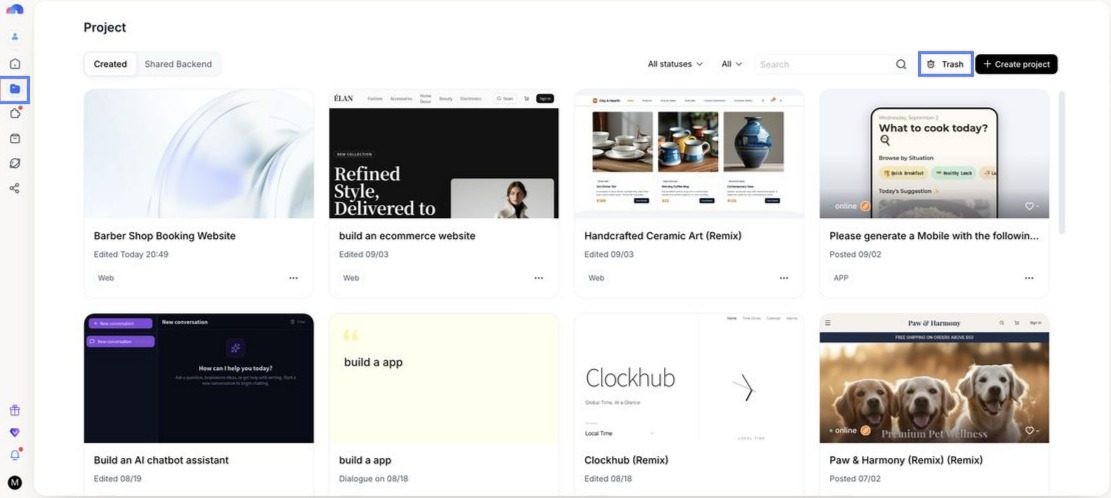
Each project shows its name, when it was last edited, and its type, with Edit and Visit actions. Deleted projects go to Trash and stay recoverable for 30 days. See Version rollback & trash.
The editor
Opening a project puts the conversation on one side and your app on the other. Switch views from the editor sidebar:
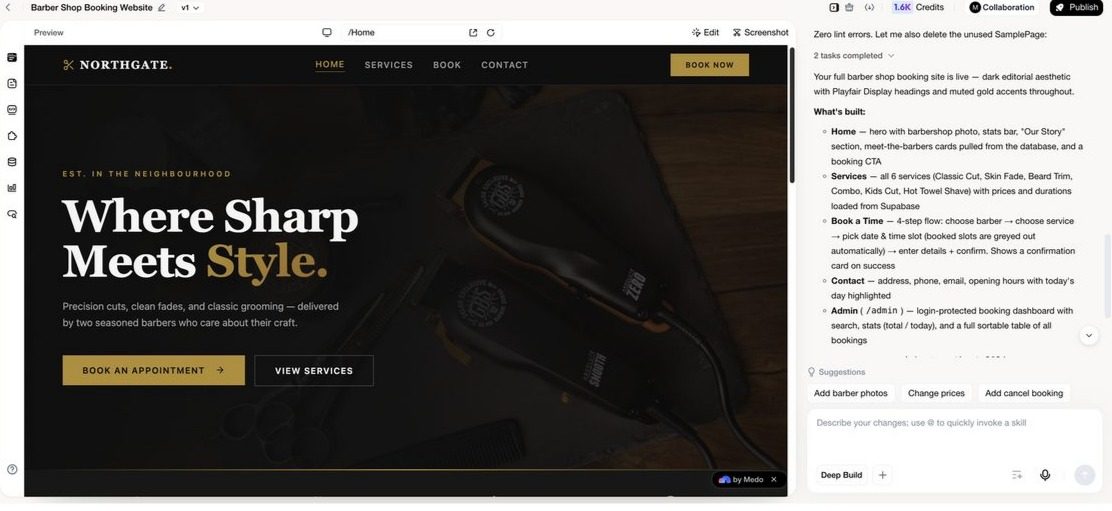
Not every view appears for every app — which ones you see depends on the app type and whether it has a backend.
Above the app: the version selector (v1, v2, …) for release history and rollback, Credits, Collaboration for inviting people to the project, and Publish — which becomes Update once the app is live.