
SEO & Search Visibility
Help your published app get found: run the SEO check in the editor, apply AI fixes to titles, descriptions, and keywords, and understand what it costs.
If people should find your app through a search engine rather than only through a link you send, spend a few minutes on this before you publish.
When this matters
SEO is worth doing for business sites, landing pages, portfolios — anything you want people to discover through search.
Where the controls are
SEO is a Pro and Max feature. Open the SEO view in the editor's left rail (the last icon). The first time, it shows a short description and an Unlock SEO button — click it to turn SEO on for this app. The publish panel (click Update at the top right) also has an Optimize SEO switch that shows whether SEO is on for the app.
For traffic figures after publishing, use the data analysis view instead — see App Analytics.
The SEO page has three parts:
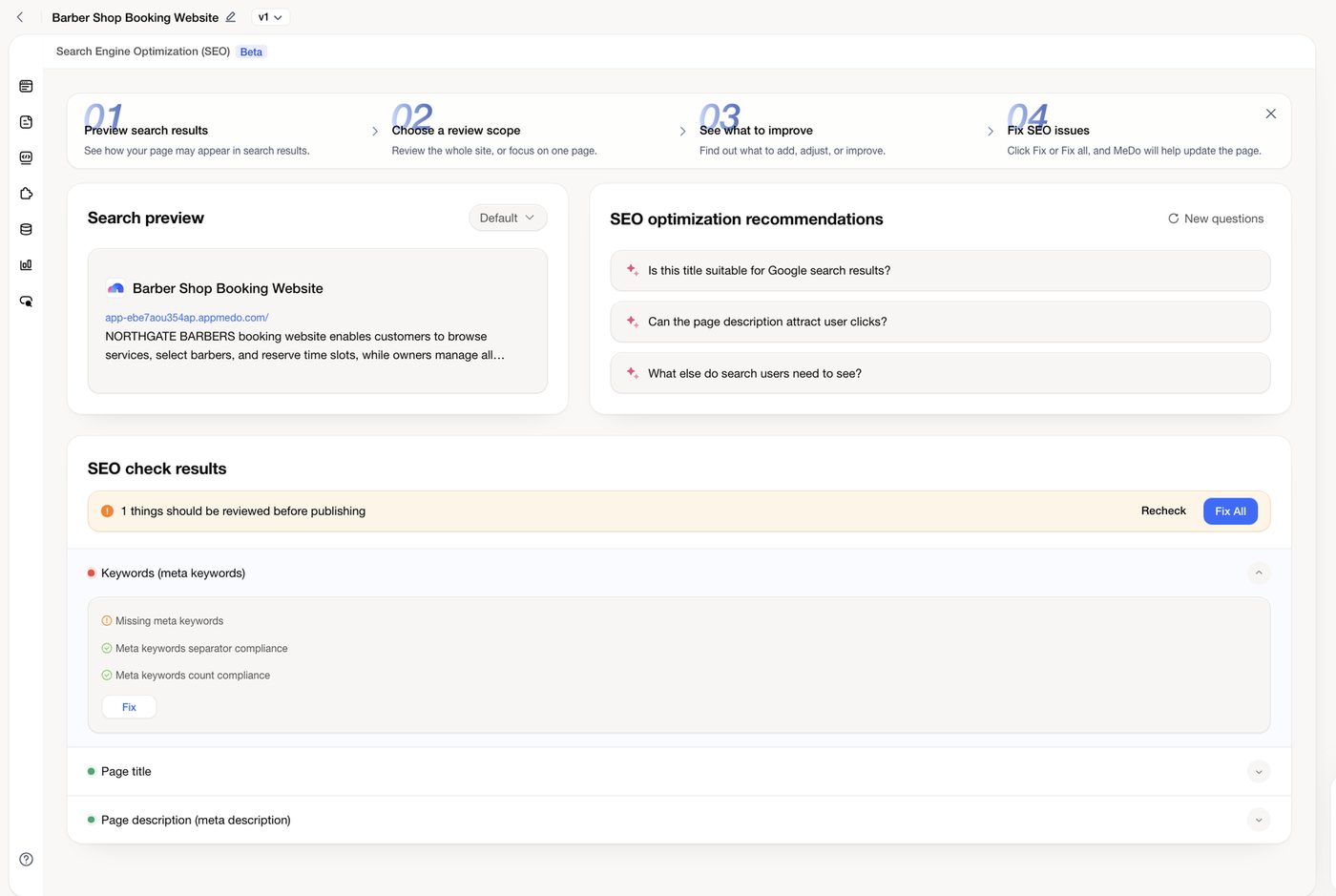
- Search preview — how your page would look as a Google result: title, address, and description. The Default dropdown switches between reviewing the whole site or a single page.
- SEO optimization recommendations — questions MeDo raises about your page ("Is this title suitable for Google search results?", "Can the page description attract user clicks?"). They point at what to improve; New questions refreshes the list.
- SEO check results — a list of the things search engines read: Keywords (meta keywords), Page title, Page description (meta description). A green dot means it passed; a red dot means something needs attention. Expand an item to see the individual checks and a Fix button.
Review and fix
- Open the SEO view and wait a moment while MeDo checks the app's search setup.
- Read the Search preview. If the title or description would not make you click, that is your first fix.
- In SEO check results, expand any red item. Click Fix to let MeDo rewrite that field, or Fix All at the top of the list to handle everything at once. To change the wording yourself instead, ask in the chat ("change the page title to …").
- Click Recheck to confirm everything is green.
- Publish again (Update → Update&Publish) so the changes reach the live site.
Each AI fix costs 15 credits; asking MeDo to change text in chat costs a normal build message. See Credit System.
What makes these fields work:
- Title — what the page is, in a few words, with your business name. Different on every page.
- Description — one or two sentences a person would actually click. This is the text shown under your title in results.
- Keywords — words that genuinely appear on that page. Stuffing unrelated terms does not help.
Indexing and sitemap
Published apps are served with the standard files search engines look for, including a sitemap, so you do not need to generate anything by hand.
Indexing is not instant. After publishing, expect days rather than minutes before your pages appear in search, and longer for a brand-new domain. Publishing again with better titles and descriptions is the fastest way to improve what eventually gets indexed.
A realistic checklist
- Every page has its own title, not the same one repeated.
- Each description reads like a sentence, not a keyword list.
- The home page says what the business is and where it operates.
- Real content is on the page — search engines rank text, not placeholders.
- You published after making the changes; drafts are not indexed.
Related
- Publishing a release — publish and update your app.
- Custom domains & SSL — your own domain instead of the default address.
- App Analytics — see whether the traffic actually arrives.