
Backend settings & keep-alive
Where the backend lives in the editor, how backend plans and overage are billed, what keep-alive does, how to disable and re-enable a backend, and how environments work on Free and Pro.
If your app stores anything — bookings, orders, form submissions, user accounts — it runs on a managed backend that MeDo creates alongside the pages. You manage it from the Backend view in the editor. This page covers the settings that decide whether the backend is running when your users need it.
Open the Backend view
In the editor, click the Backend icon in the left rail. The Overview tab shows the backend's status (normally Running), a Disable / View pair of buttons, and the Backend Keep-Alive switch.
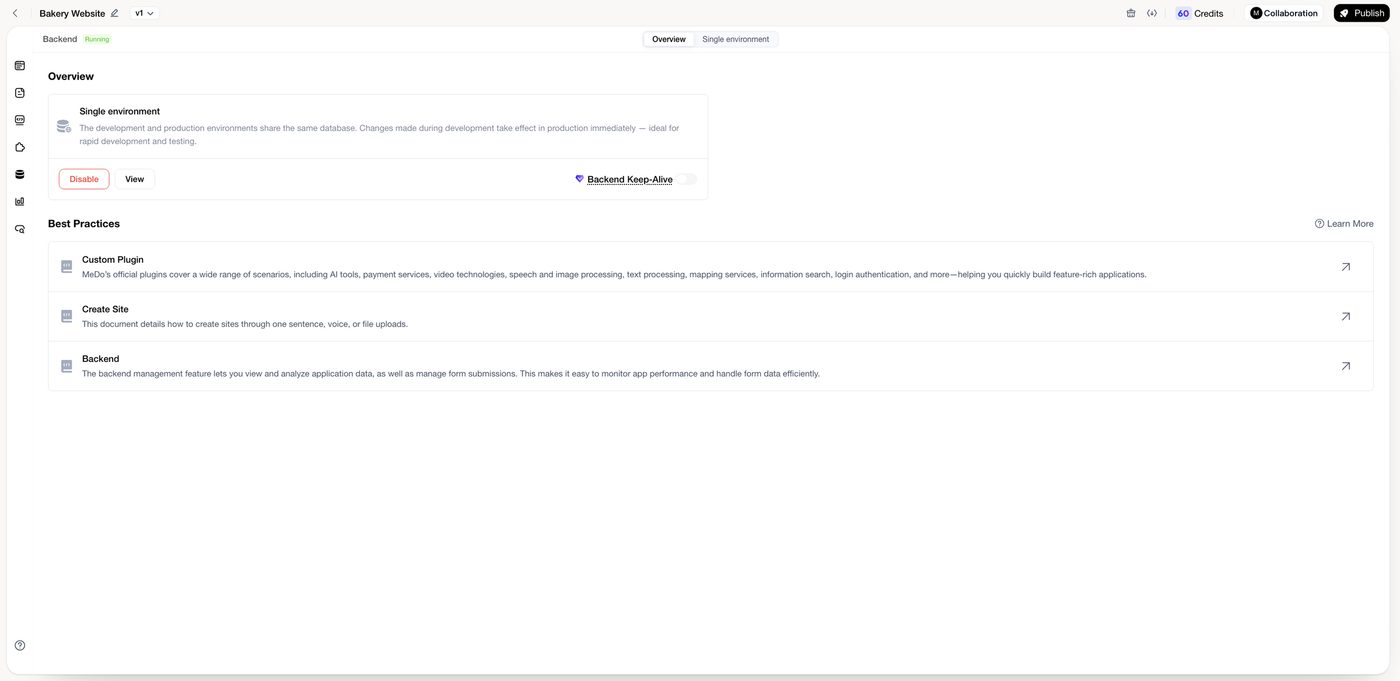
The second tab opens the data tools — tables, users, functions, secrets, and scheduled tasks — described in App data & forms.
What a running backend costs
App pages are free to host. Only the backend is metered, and the charge depends on the plan and on disk and object storage above the included quota. See Credit System.
On a day the backend is in use, MeDo charges that day's plan rate plus any overage. On a day it is not in use, MeDo charges only that overage — a retention charge — and not the plan rate. Each backend is charged once for a given day.
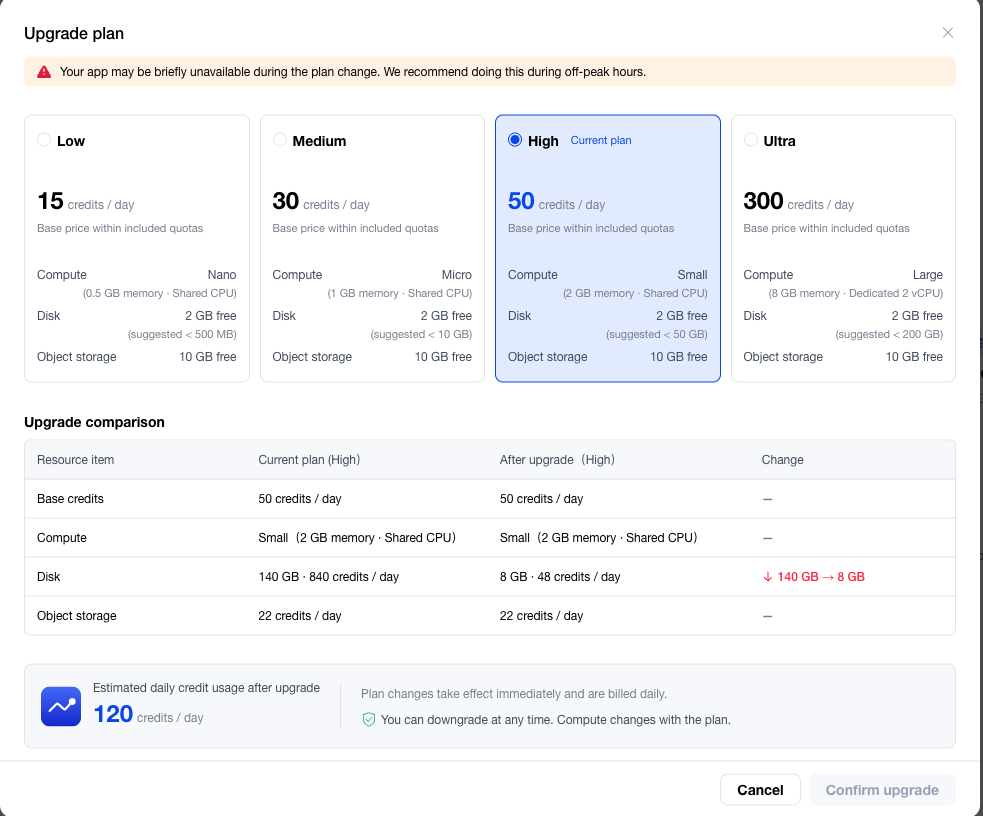
Every plan includes 2 GB of disk and 10 GB of object storage. Within those amounts, an active day costs only the plan rate in the table below. The disk size in Backend is the real disk assigned to the backend, not how much data is stored.
Disk and object storage usage can be viewed only while the backend is enabled. The numbers update with a short delay, so data you just saved does not show up immediately. Until the count is ready, the page shows Data is updating. Please try again later.
- Once the assigned disk is above 2 GB, the full assigned size is billed at 6 credits per GB per day. The included 2 GB is not subtracted.
- Once object storage is above 10 GB, the full actual usage, rounded up to the next GB, is billed at 2 credits per GB per day. The included 10 GB is not subtracted.
If several apps share one backend, each connected app pays that same daily amount. See Sharing a backend.
If the credit balance cannot cover a charge, MeDo pauses the backend. Published pages still open, but sign-in and stored data stop until you add credits and enable the backend again. MeDo emails you when the balance may not cover about 7 days at the current daily rate, and again when about 3 days remain.
How disk grows
Disk starts at 2 GB. When usage reaches 80%, it grows automatically:
- The first step goes from 2 GB straight to 8 GB.
- After that, each step adds 50% of the current size, rounded up.
- One step adds at most 200 GB.
- Disk can grow at most 4 times in 24 hours.
Object storage does not use this ladder. It is billed on the files actually stored.
Choose a backend size
The Free plan cannot switch backend plans. On Pro and Max, open the Backend view and choose Low, Medium, High, or Ultra. The change takes effect immediately and is billed by the day. You can move to a smaller plan at any time. Switching can make the backend unavailable for a short time, so change it when fewer people are using the app.
Switching sets the disk from actual usage: usage within 2 GB returns the disk to 2 GB; higher usage moves it to the smallest step above that can hold the data. That changes the disk assigned to the backend, not the amount already stored.
Keep-alive: the setting that matters for real users
On the Free plan, a backend that sees five consecutive days without project activity is paused. The published pages still open, but sign-in, forms, and anything that reads or writes data stop working until the backend is running again.
Backend Keep-Alive prevents that pause. It is a Pro and Max feature, and MeDo offers to turn it on the first time you publish an app that has a backend:
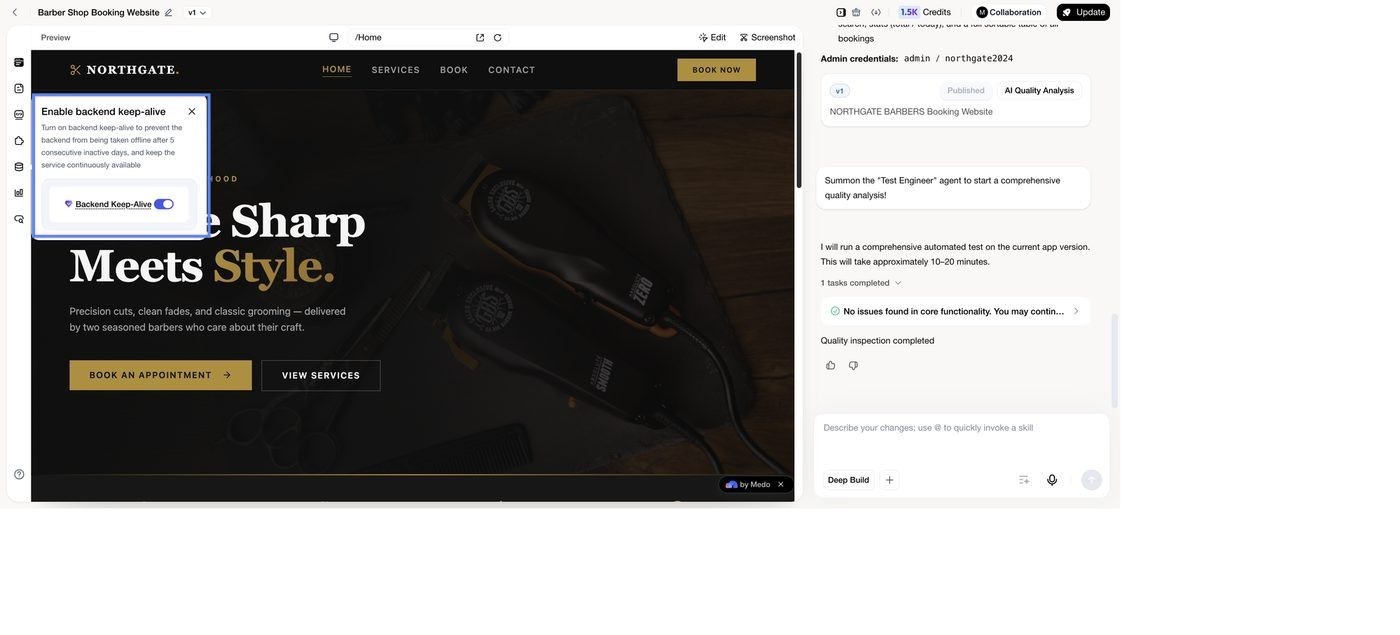
You can also switch it on or off at any time from the Overview tab. Turn it on for any app that customers rely on; leave it off for prototypes you only open yourself.
Disable and re-enable
Between projects, or while an app is parked, you can stop paying for the backend:
- Disable (Overview tab) turns the backend off. Your data is kept, daily charges stop, and the app cannot read or write data until you enable it again.
- To bring it back, open the same tab and enable the backend. Existing tables, users, and files are still there.
If sign-in, forms, or saved data suddenly stop working on a published app, this is the first thing to check: the backend is disabled, paused after inactivity, or paused because credits could not cover the charge.
Environments
Every app starts with a single environment: development and production share one database. This is fine while you are building, but it means test bookings end up in the same table as real ones.
On Pro and Max you can run multiple backend environments, so you can make and check changes against development data and apply them to production when they are right. The environment tab in the Backend view tells you which mode your app is in.
Reuse one backend across several apps
When creating a new app you can point it at an existing project's backend instead of provisioning a new one — useful when a website, an admin console, and a mobile app should share the same customers and orders. See Sharing a backend.