
App Preview
-
Click to Preview: After editing, click the Preview button in the editing interface.

-
Preview: The preview function simulates normal website access. You can configure the default landing page in Page Management and Configuration. Use the preview to verify the page layout, content, and interactions.

-
Adjust and preview again: If you find an issue, return to the editor and make changes. Click Preview again and repeat until the result meets your expectations.
Note: To preview a published application, select it under My Applications → Already Live.

Frontend page display
- Display homepage by default: When end users access the application, the system will display the homepage content by default, which is set in Page Management and Configuration.
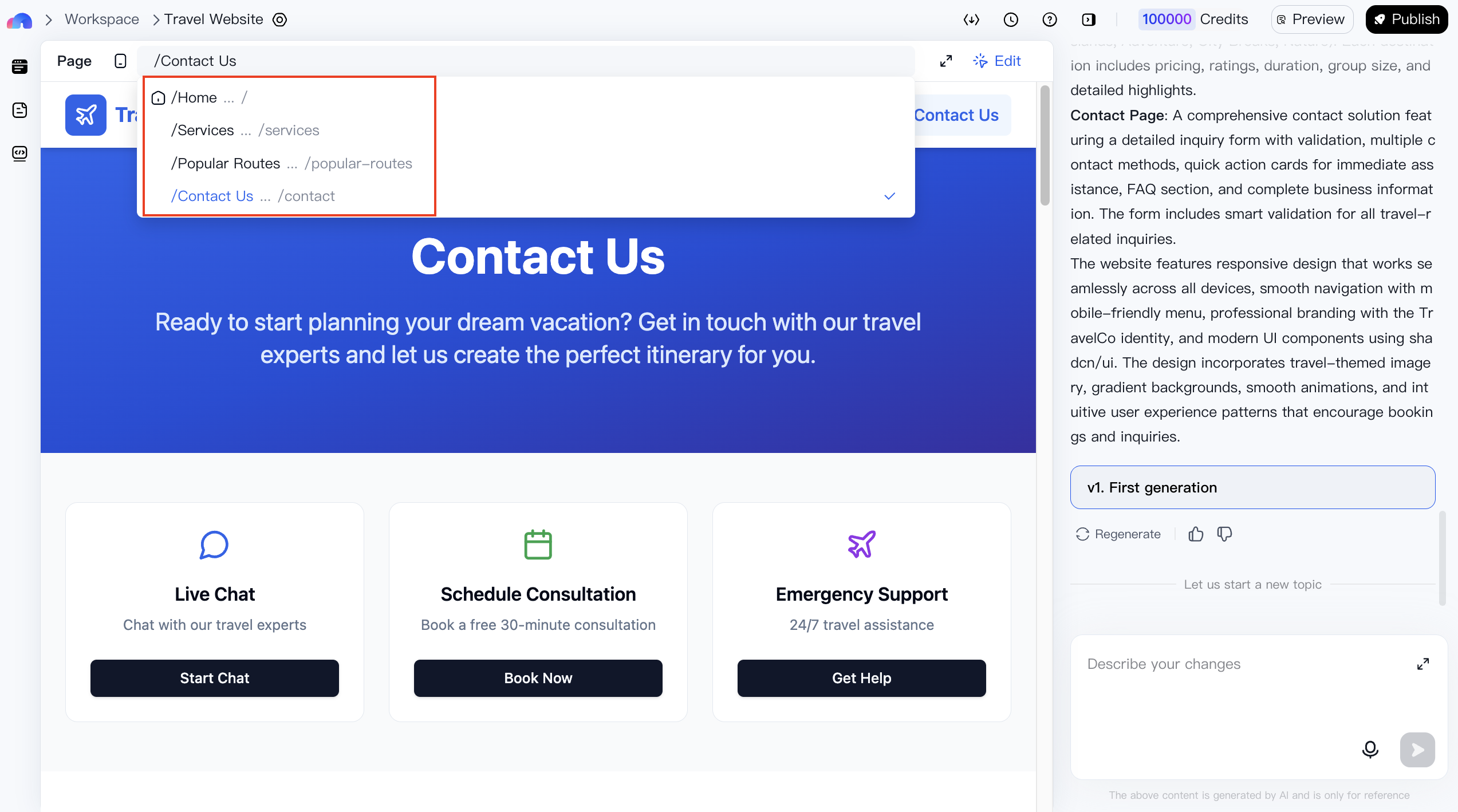
- Switch page: Users can switch between pages of the application via the navigation bar or other interactive elements to view more information or perform specific operations.

Backend management
Backend management is a universal backend function to manage form data generated by H5 and sites, as well as site products, articles, news, user composition, and other content. Data from different environments must be viewed in the corresponding backend management systems.
Preview mode switching
Explanation of switching function
The application supports switching preview modes for frontend pages. Please note that websites, questionnaires, mini games, and mini tools can be previewed on PC and mobile, while H5 can only be previewed on mobile.
Steps of switching
-
Access Preview Configuration: Locate the PC/Mobile Switching Configuration option in the top setting area of the application editing interface or the upper-right area of the preview page.


-
Select preview mode:
- Site: If the application is a site, questionnaire, mini game, or mini tool, you can select PC or Mobile preview mode as needed. After selection, the preview interface will display the pages in the mode selected, allowing you to view the application's adaptability to different devices.
- H5: If the application is an H5, the switching option is hidden because it does not support switching. At this point, the preview interface will display the page directly on mobile.