Download and Building the app
MeDo's project code export feature allows you to download your application's code, with each download requiring the consumption of 80 credits.
Scenarios and Use Cases:
- For simple, frontend applications, developers can directly deploy and run the downloaded code package locally after download the zip file.
- For complex applications involving backend data storage, developers will need some additional development to integrate supabase services.
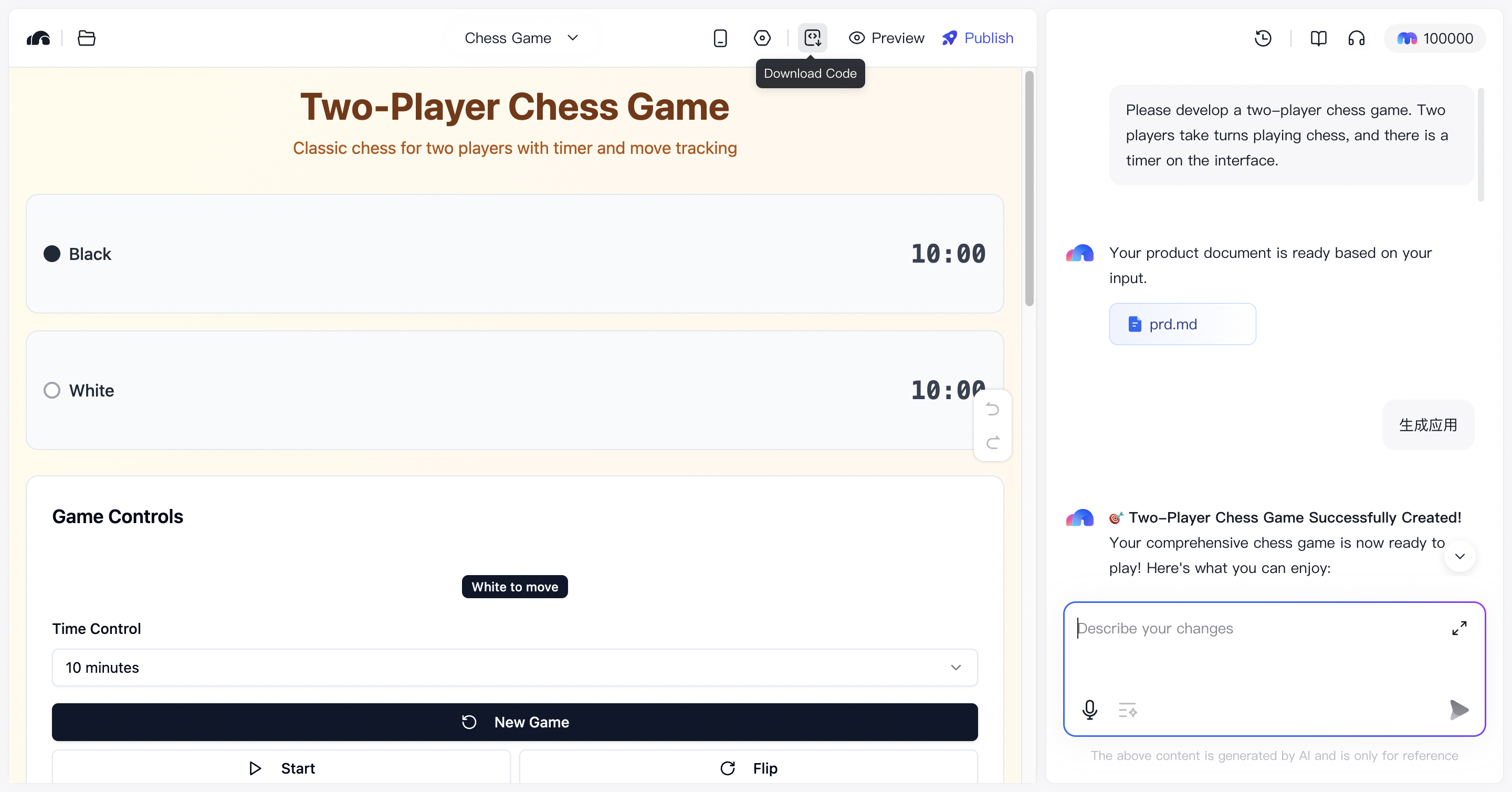
How to download the application code?
After the application is successfully generated, a "Download" button will appear above the editing interface. Simply click this button to download the application's code package. Please note that code cannot be downloaded during the application generation process.

The downloaded code version corresponds to the specific application version that the developer is currently editing.
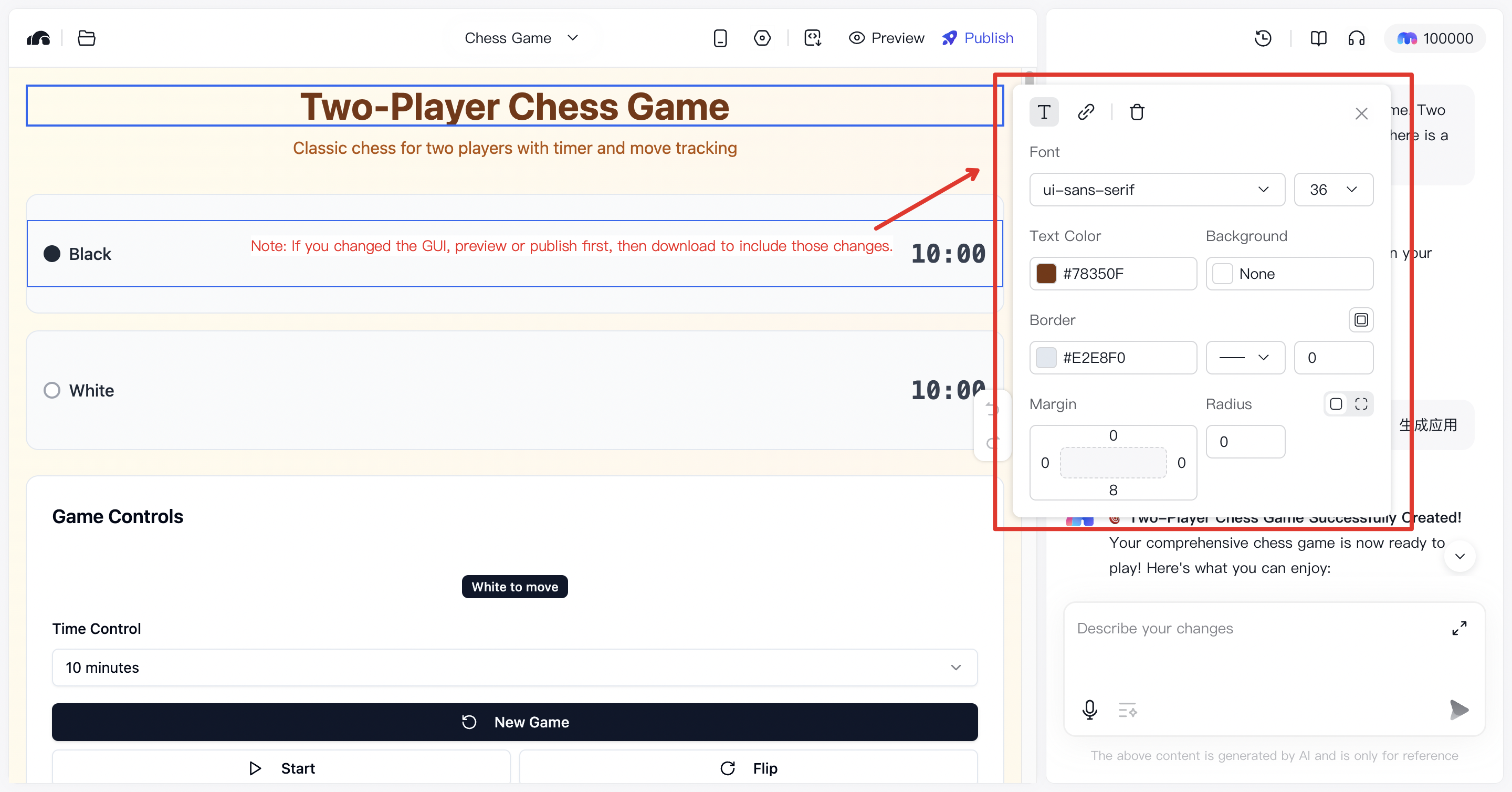
It is important to note that if any GUI modifications were made during the development process using the editor (such as editing fonts, colors, etc.), you must first either preview the application or publish it before downloading the code. This ensures that the downloaded code package includes all the GUI modifications. Otherwise, the directly downloaded code will not contain these GUI changes.
Development Guidelines
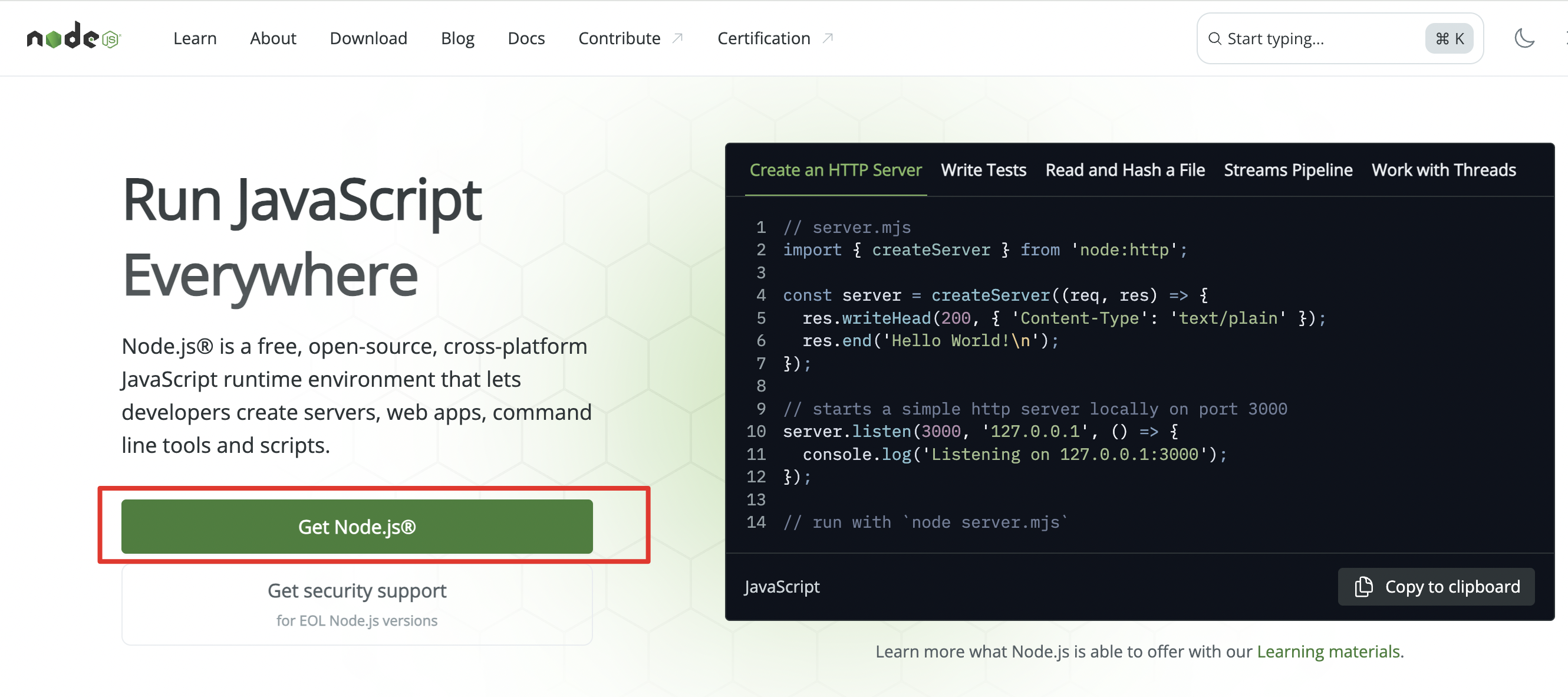
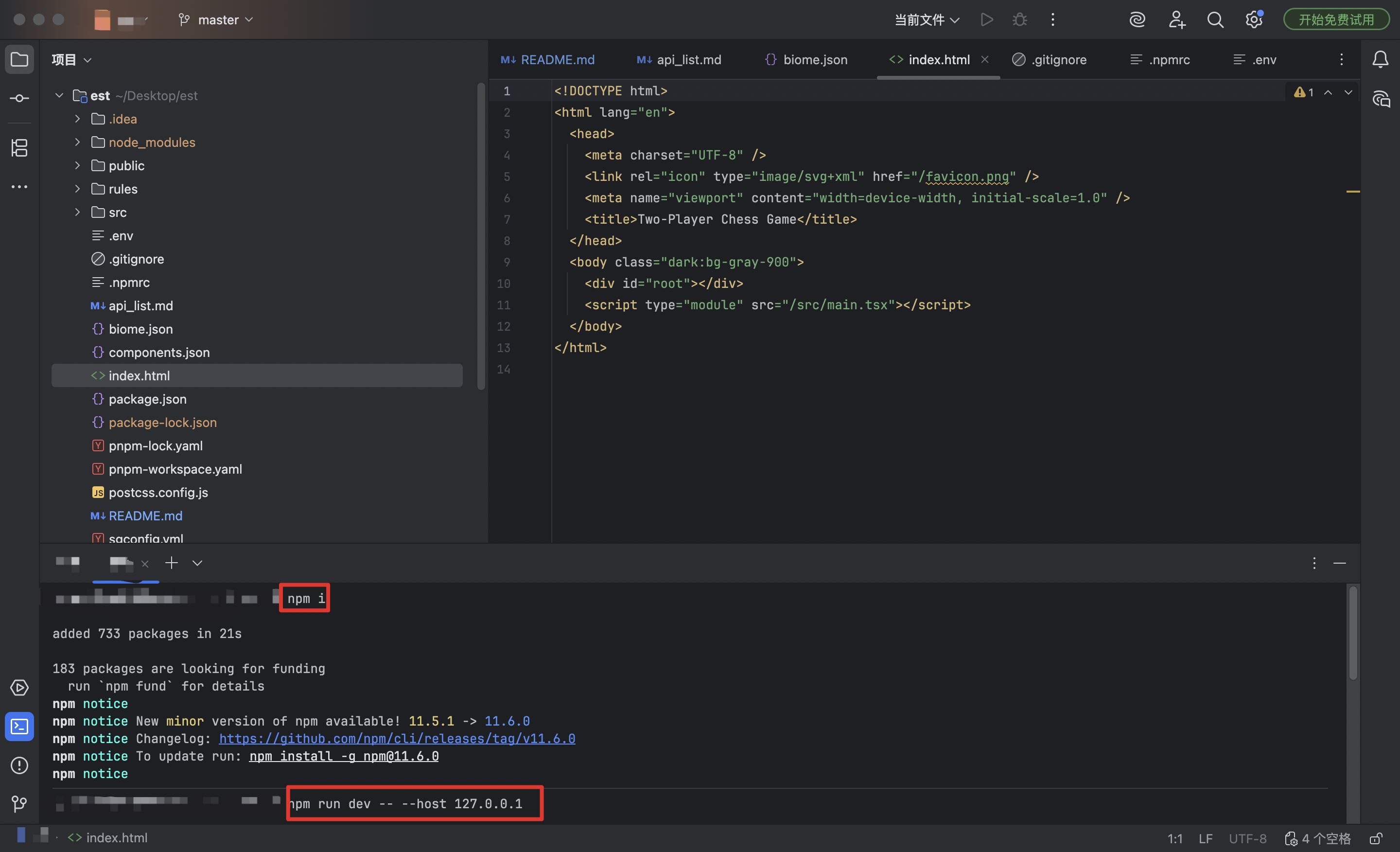
After downloading the code package, you first need to set up the environment as described below (install Node.js and npm), then open the code package with an IDE to locally deploy and run the application.
IDE: You can choose VSCode, IntelliJ IDEA, or use your preferred IDE for local code editing.
Environment Requirements
Installing Node.js on Windows

Installing Node.js on macOS
Step 1:

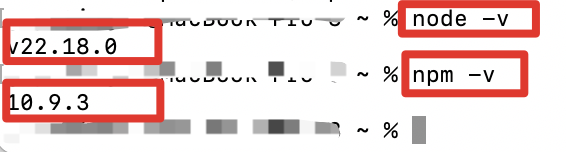
step 1 alternative:
Run the following command in the terminal: /bin/bash -c "$(curl -fsSL https://raw.githubusercontent.com/Homebrew/install/HEAD/install.sh)"


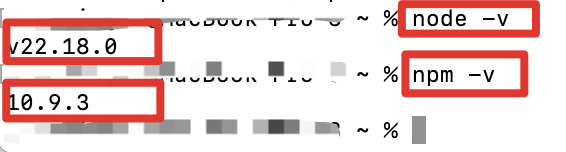
After installation, follow these steps:
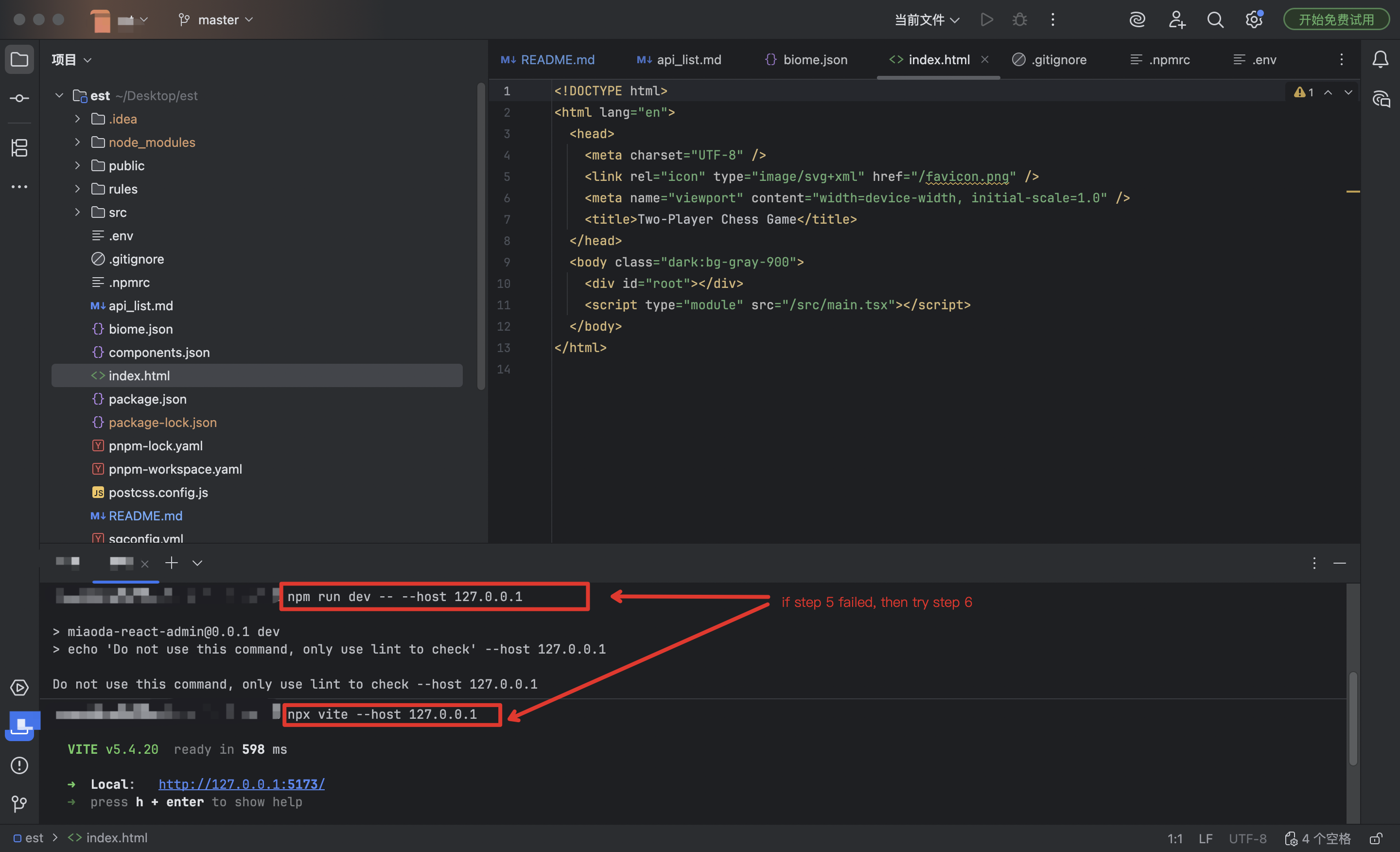
How to Develop Backend Services?
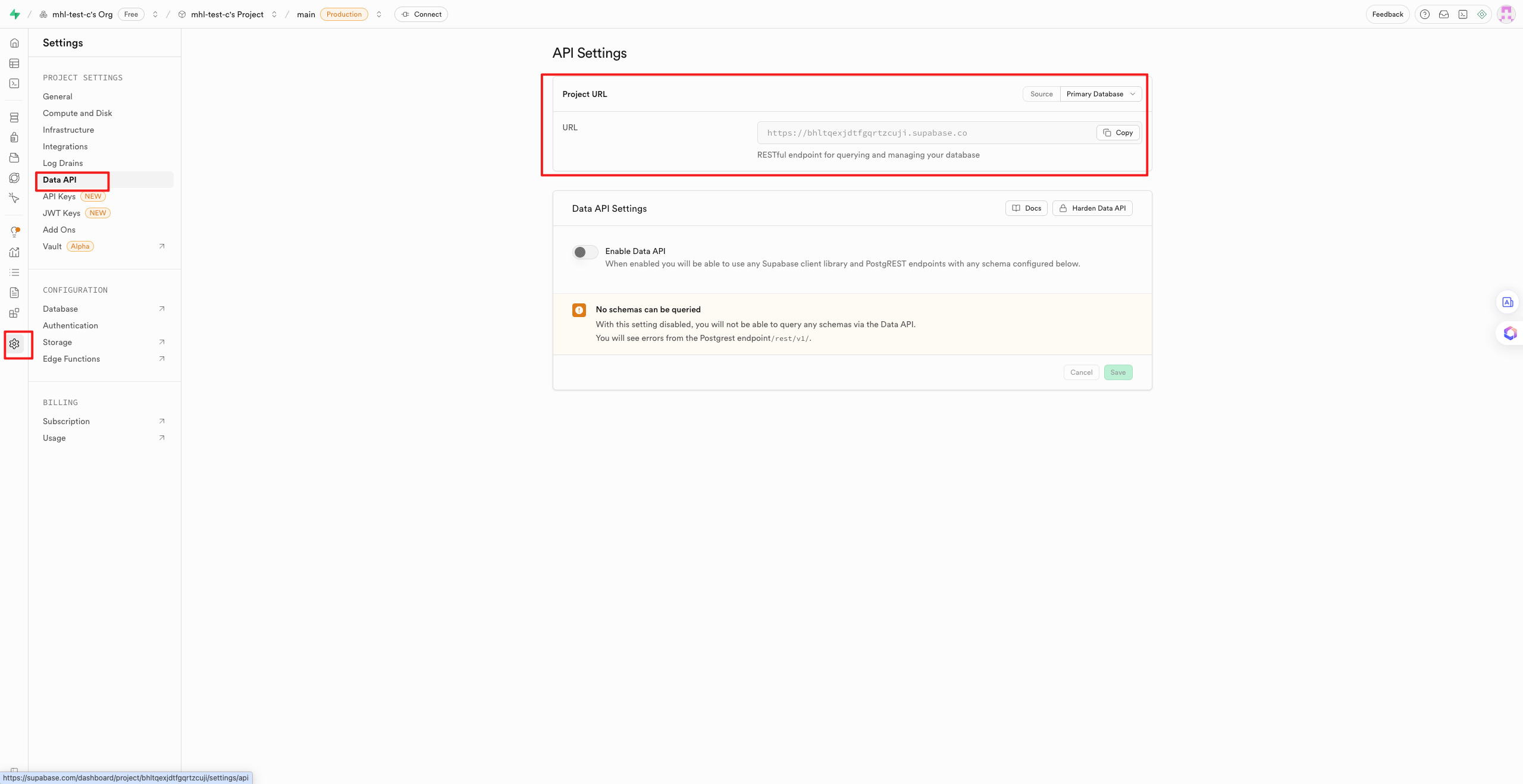
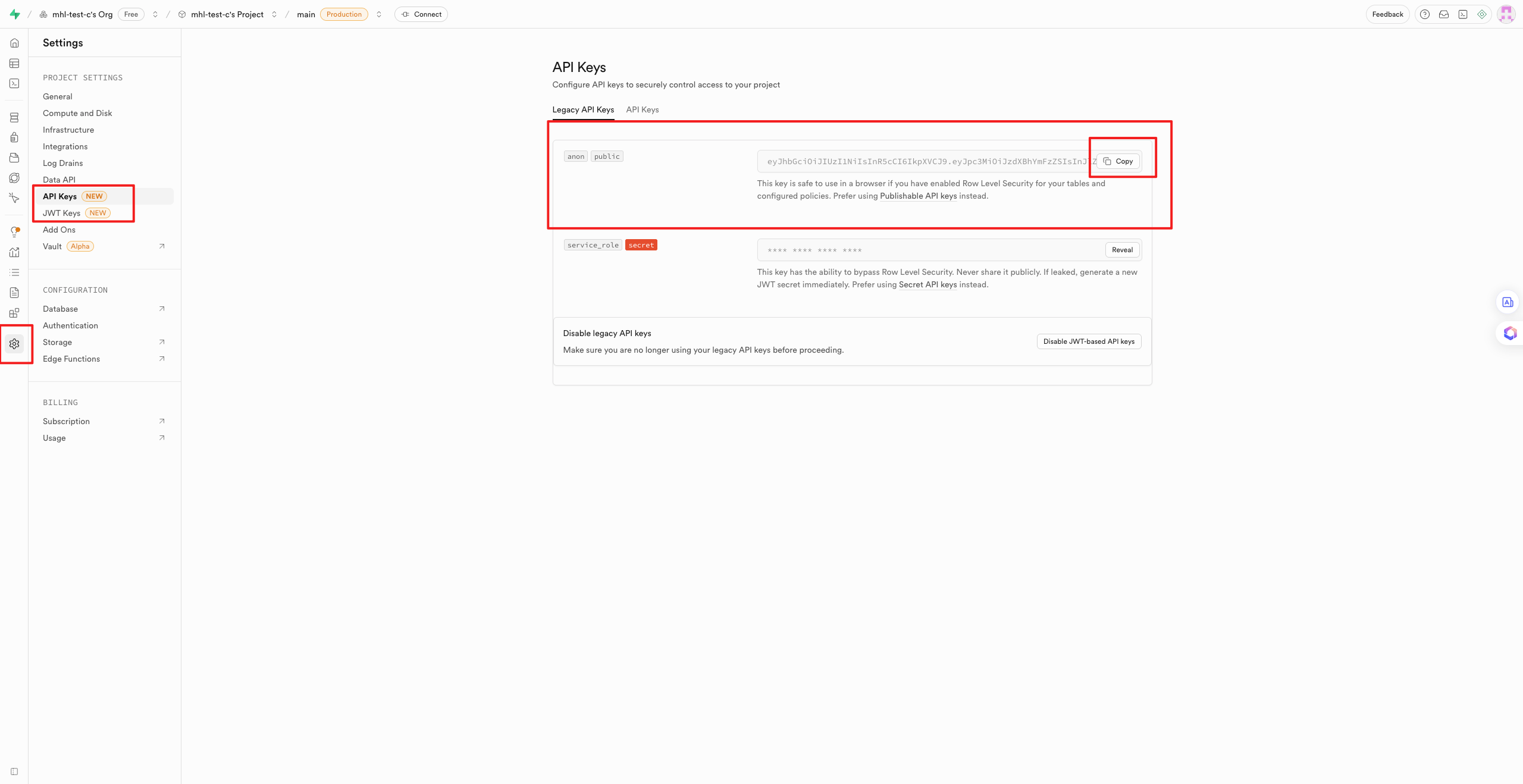
For applications with backend data storage functionality, after obtaining the source code, developers need to integrate their own Supabase project for further secondary development and management.
Supabase official website: https://supabase.com/
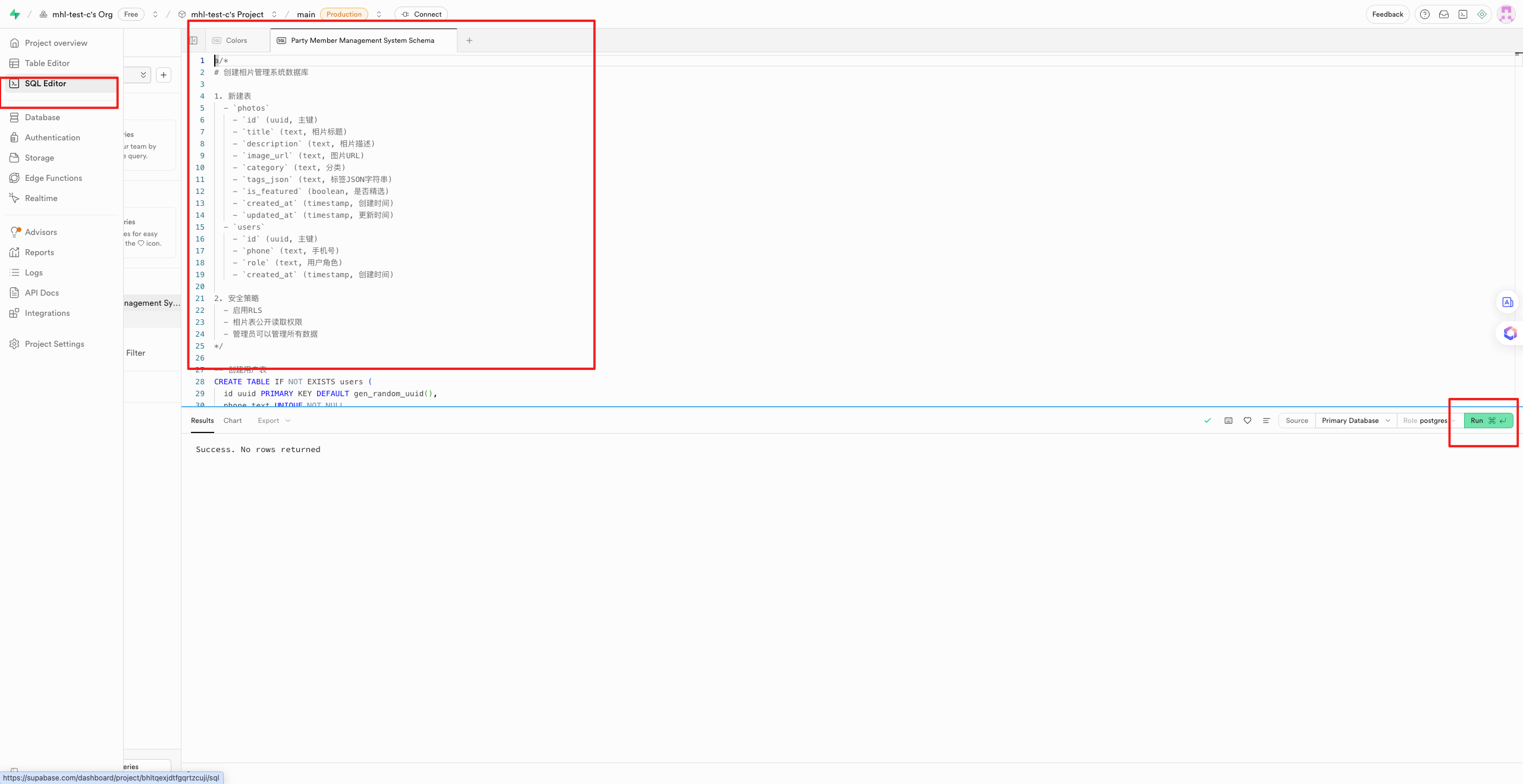
Import and run SQL in Supabase

** Replace the environment variables in the source code package**
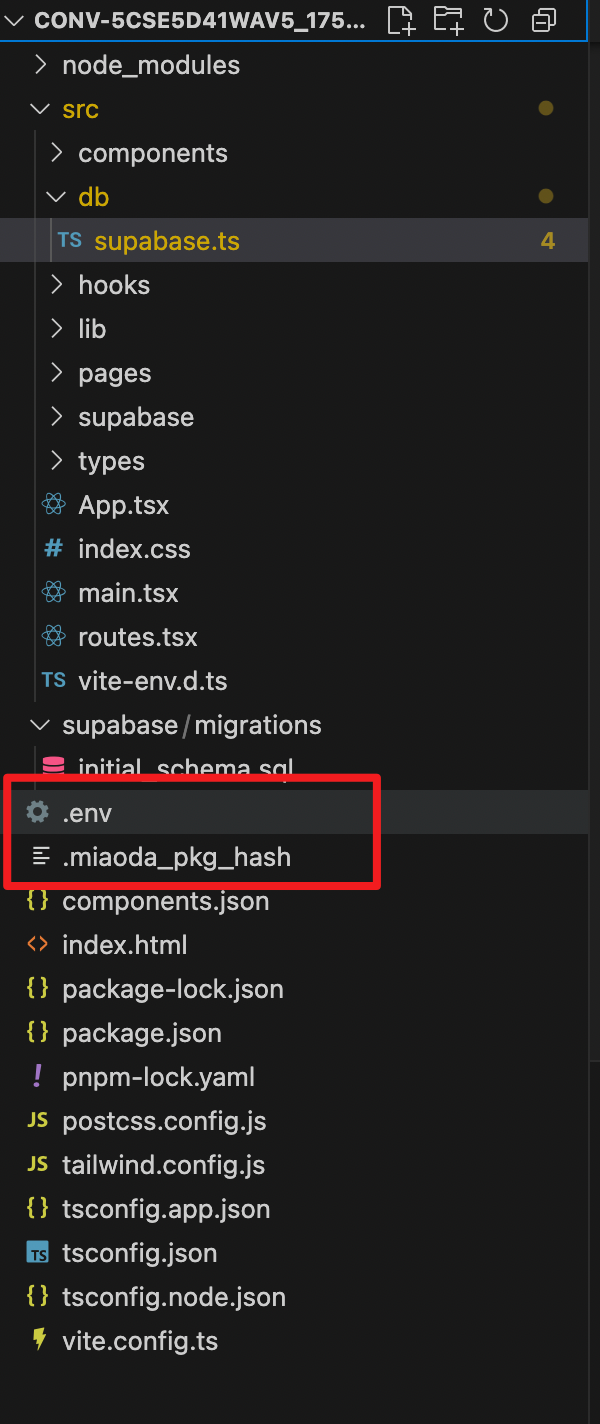
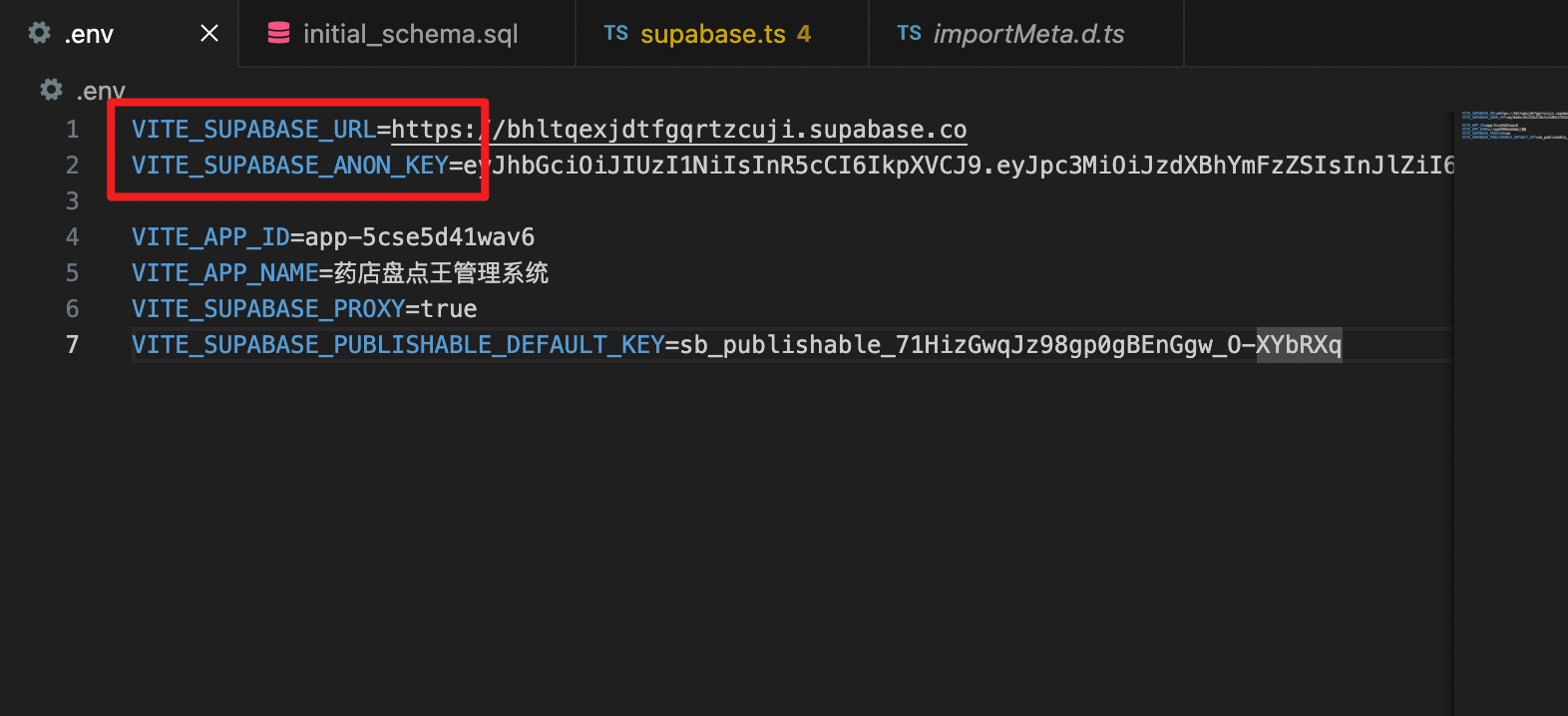
Replace the following in the .env file with your own credentials:
- Update the URL and API keys
Note: Change VITE_SUPABASE_PROXY=true to false.